Sites & Information
Using our unique site information and awareness tool, allows our company to be aware of who is working on which site.
Sites have been designed and developed for you to make the workers more aware of hazards and an easier understanding of the workplace before arriving on-site.
You can add photos and images to improve workers’ information, set work zones, and even view personnel on-site.
Safety PAL does not limit the number of sites you have or the number of zones per site, safety should not be limited, so safety doesn’t limit.
You can set a site as a district, town, access areas, or detailed plant, setting zones within the site will allow a more detailed plant, breakdown, and overview for increased worker knowledge.
You will find the site on the left menu bar. Across the top are navigation buttons for:
Add a new site: Click to add a new site to your account.
View Archived: You can view archived sites you no longer have projects on.
Search: Type the name of your site and let Safety PAL list the site match.

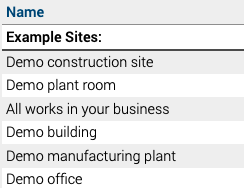
We have created some sample sites, this is to help you understand quickly how Safety PAL allows better and more detailed information to your workers.
The 5 sites cover a broad industry range. If you want Safety PAL to create a site for you, please email us at safety@yoursafetypal.com.
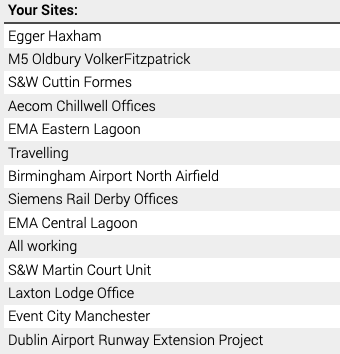
Clicking on your required sites takes you to the site image and site information.
The site name and address is firstly detailed, and the navigational and edit button are displayed across the top of the page.

You can have the option to add unlimited sites. You can view each individual site by clicking on the view button.
The edit section enables you to add zones, include photos, and specific area awareness information. 20 sites per page are shown at any one time; use the page scroll option to see all site pages.
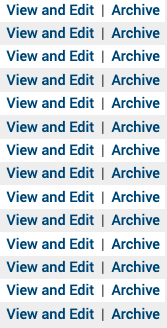
On the right-hand side of the site descriptions, you will find view and edit. Click view to view/edit.
If you need to add more information or add/remove hazards, photos, or images, then click edits in that zone.
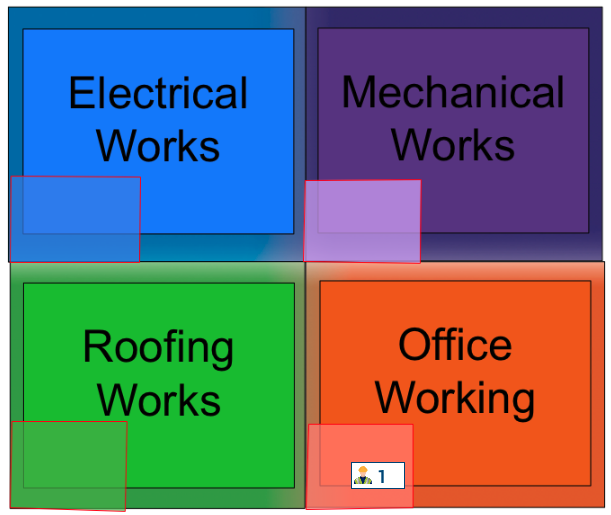
On the right-hand side of the site page, you can click on ‘View Jobs on this site. This will display any workers signed into jobs on your site. (Shown in the first image)
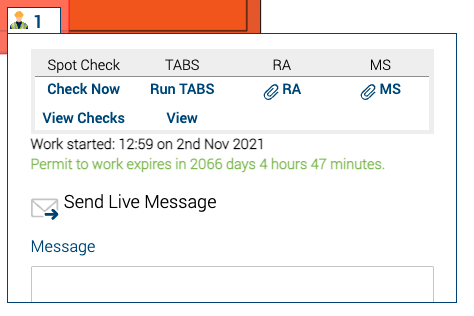
The worker icon will show the number of workers (1 in this image) currently signed into that specific site and zone. Further access menus can be found when clicking on the worker icon as revealed later on.
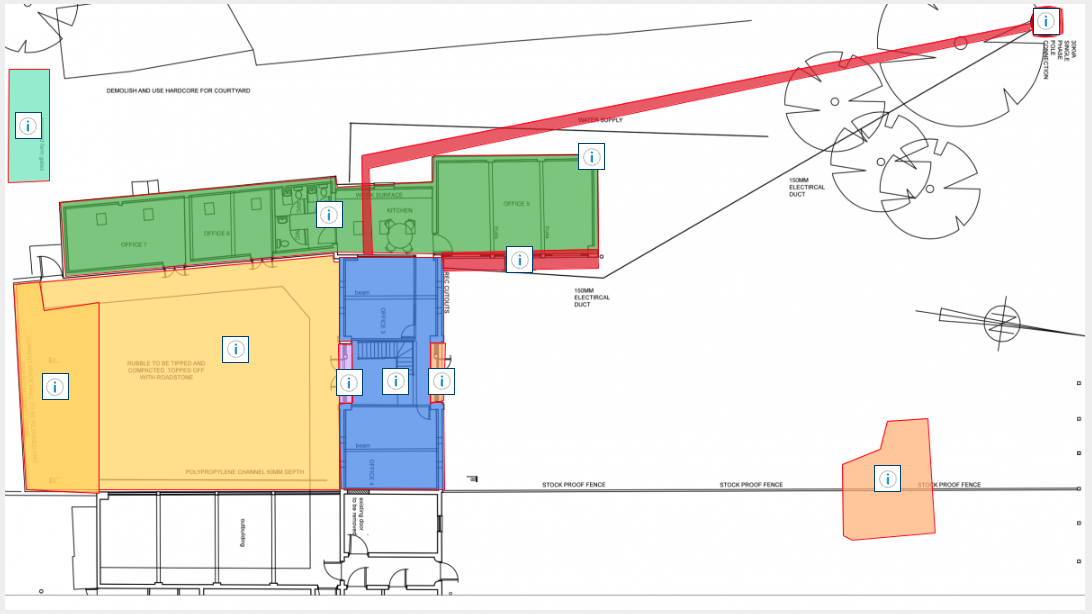
When adding a new site, you have the option to pick a more simplified version of your site (shown in the second image) you can have a drawing of your site mapped out (shown in the third image)
Adding sites will be shown later.

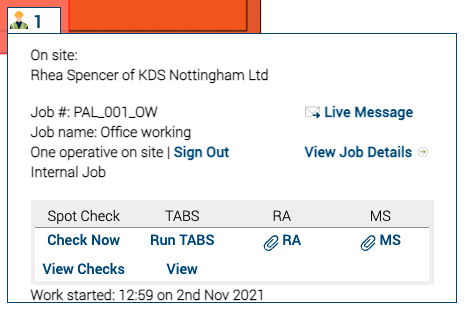
Further options are available once you click on the worker’s number:
On-Site: The names of the workers signed in.
View Job Details: Click to see the job details for this job.
Check Now: Click to complete a site audit, all records go into the reporting section of Safety PAL.
Run TABS: Complete a Talk And Be Safe talk for site operative.
All records go into the job overview.
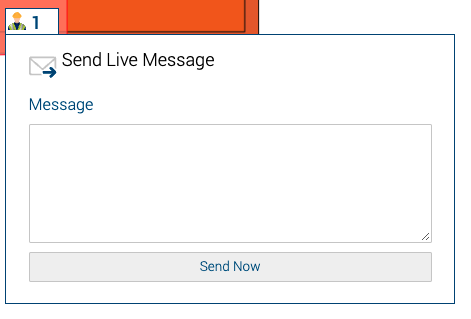
More options are:
Live Messaging: Live messaging allows you to contact every worker signed into that job.
Type your message and let Safety PAL send every worker a text using his or her account phone number, let Safety PAL do the work for you. Maybe a roll call, emergency call, or evacuation?
Being able to contact everyone efficiently reduces risk and improves management takss.
Safety PAL also provides a countdown of the operating time for the permit generated by Safety PAL. Here you can see in green the permit to work expiry time.
Tip: How many jobs did you see the permit expire before the work was complete, or the permit not signed off when the work was complete? Let Safety PAL control and create efficiency where you didn’t think it was possible.
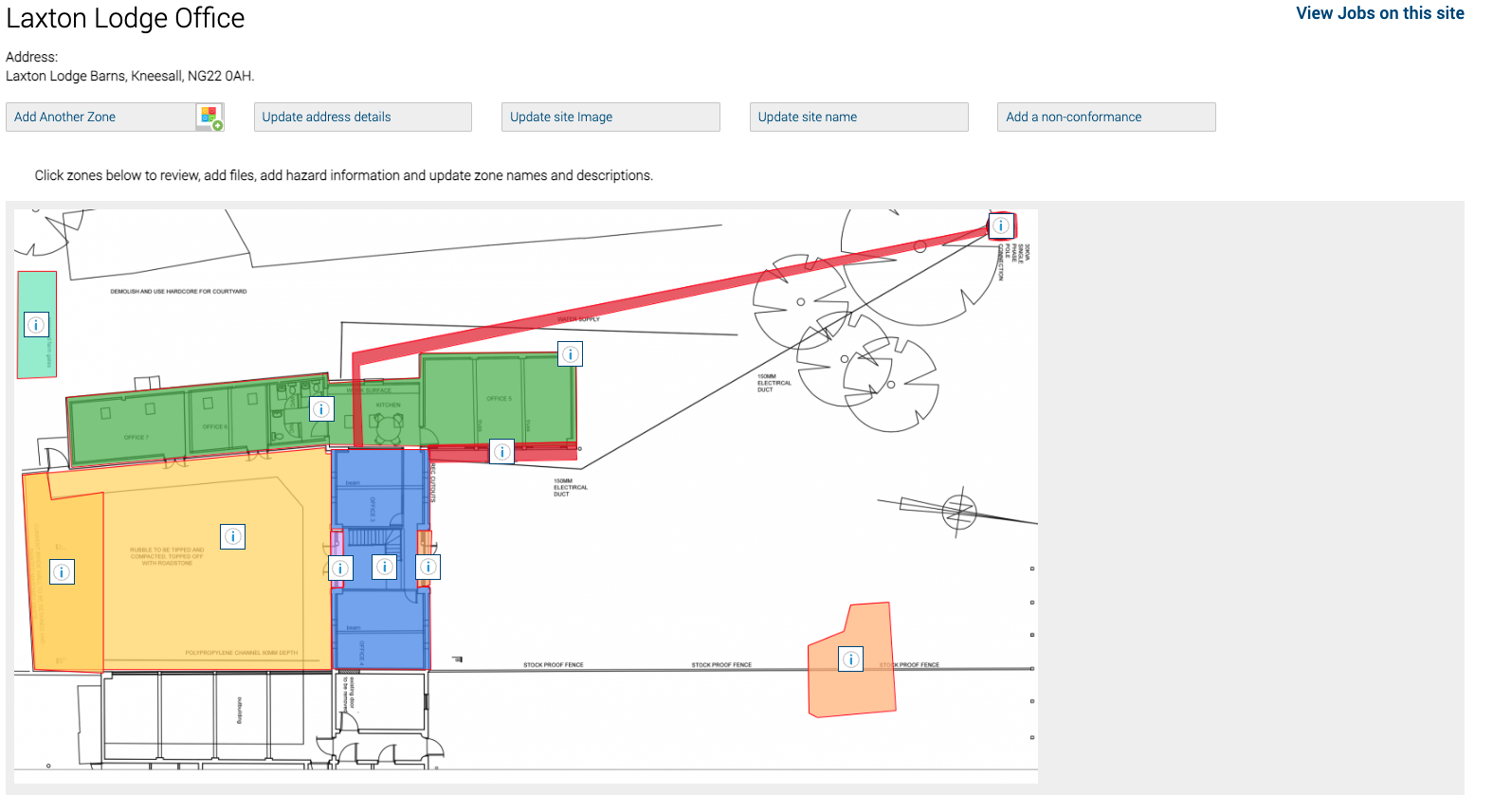
Full Site Overview: Draw zones; add hazards, upload photos or pdfs, all to make the workplace safer and the workers smarter. Getting this essential information in front of the worker’s pre-attendance to the site is imperative in creating a better safety culture and improving worker performance.
Use the ‘information icon’ to reveal zone details and zone warnings.
Use the ‘view’ buttons to expand warning details.
Use the ‘information icon’ in the top right-hand corner to view the page features.
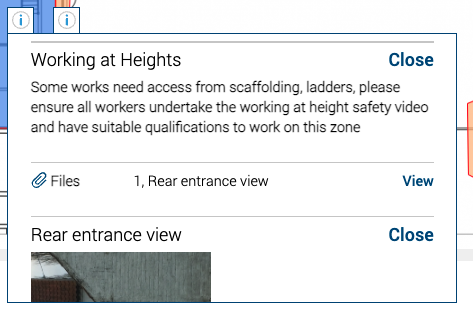
Clicking on the individual files, Safety PAL reveals photos and or images you uploaded under the editing section of the site.
You can upload site equipment images, assessment reports, job drawings, and asbestos reports. The list is endless, but the result is safer smarter workers.
If you want Safety PAL to create a site for you, please email us at safety@yoursafetypal.com