
Click Sites in the left menu bar to take you to the Sites page.
From the Site page, on the right-hand side of the site descriptions, you will find view and edit. Click view and edit to edit your selected Site.
On the top right-hand side of the site page, you can click on ‘View Jobs on this site’.
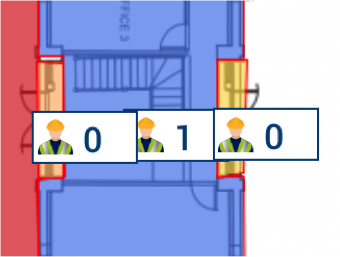
This will display any workers signed into jobs on your site. You can see more about Jobs on Site here.
The worker icon will show the number of workers (1 in this image) currently signed into that specific site and zone.
Further options are available once you click on the workers’ number.
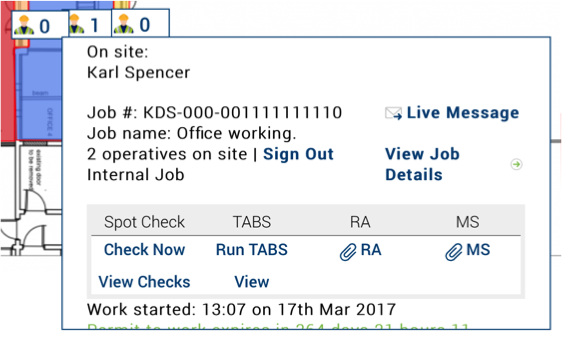
Workers name
The names or names of the workers signed in.
View Job details
Click to see the job details for this job.
Check Now
Click to complete a site audit, all records got into the reporting section of Safety PAL.
Run TABS
Complete a Talk And Be Safe talk for site operatives. all records got into the job overview.
More options are…
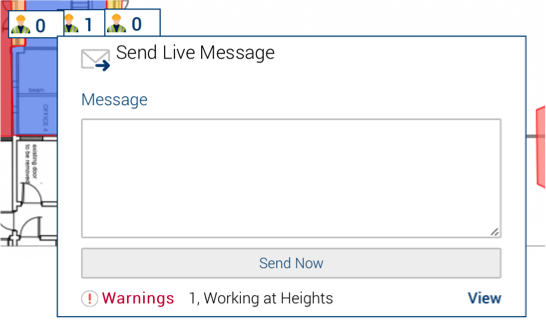
Live messaging
Live messaging allows you to contact every worker signed into that job. Type your message and let Safety PAL send every worker a text using his or her account phone number, no need to search out each workers number, let Safety PAL do the work for you. Maybe a roll call, emergency call or evacuation? Being able to contact everyone efficiently reduces risk and improves management tasks
Permit Monitoring
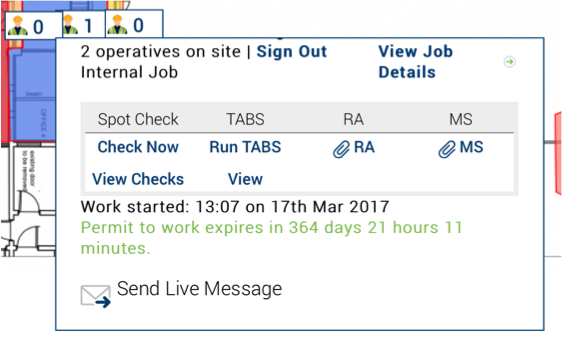
Safety PAL also provides a countdown of the operating time for the permit generated by Safety PAL.
Here you can see in green the permit to work expiry time
Tip: How many jobs did you see the permit expire before the work was complete, or the permit not signed off when the work was completed? Let Safety PAL control and create efficiency where you didn’t think it was possible.
If you want Safety PAL to create a site for you, please email us at safety@yoursafetypal.com