Bringing Everything Together
Rather than having lots of separate documents all over the place, Safety PAL brings these elements together in Jobs. You and your workers can then find everything in one secure, cloud-accessible location.
You can see who is signed in on what Site, if that User is qualified and competent, what Risks are associated with the site or job and that the correct information was given with an Induction.

Click on Jobs from the left-hand menu to see the main Jobs page.
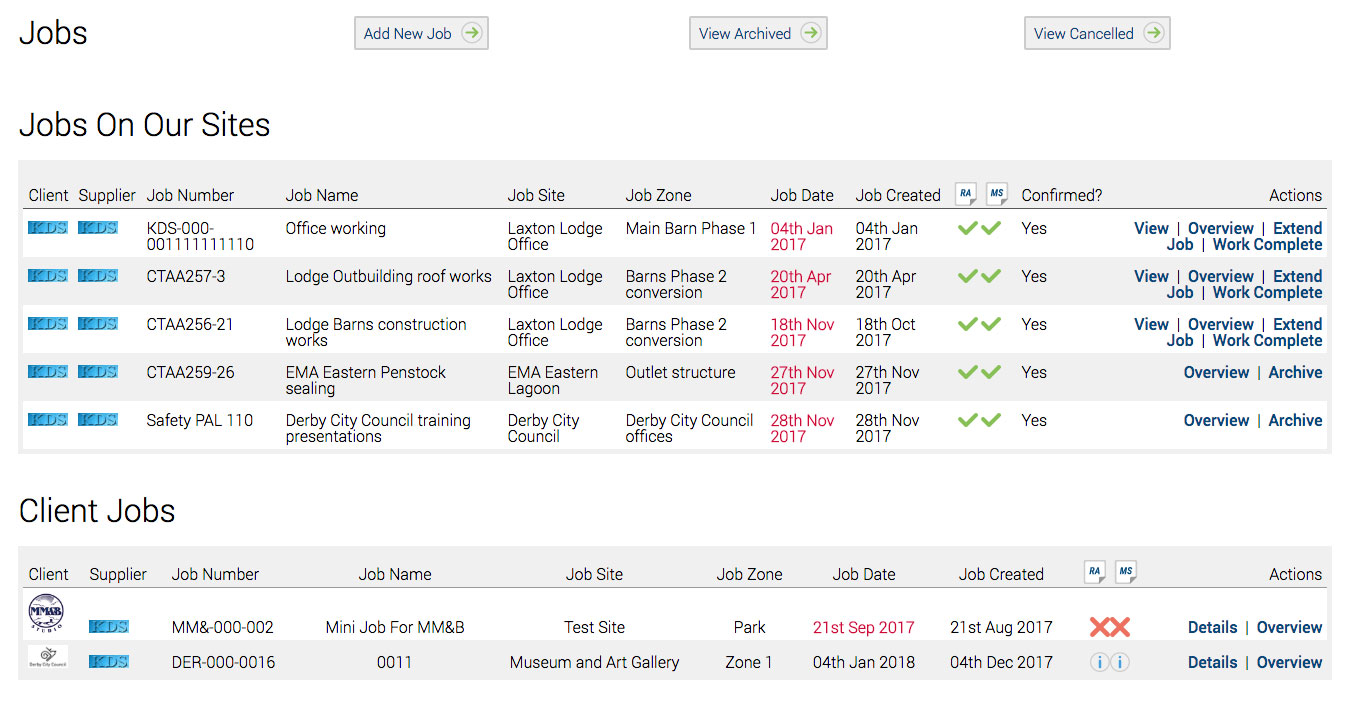
Across the top are navigation buttons

Add New Job
Click to add a new job to your account.
View Archived
You can view archived jobs you no longer have in operation.
View Cancelled
You can view cancelled jobs and the description why they were cancelled.
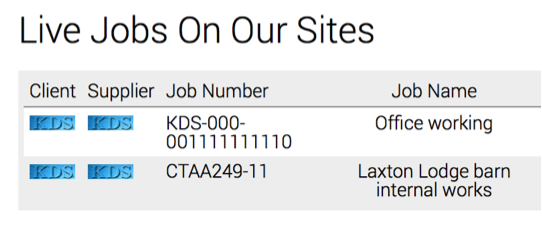
Live Jobs
This shows all the jobs where employees and or contractors are working on your site. If Live jobs cannot be seen on your screen, you do not have any Live Jobs currently operating on any of your sites. i.e. no users have signed in.
Client Logo
This is the logo of the company controlling the job, note this will be your logo if the job is an internal job.
Supplier Logo
This is the logo of the company completing the job, note this will be your logo if the job is an internal job.
Jobs On Our Sites
Further down the jobs page, you will see a list of jobs that are ready to go and awaiting approval.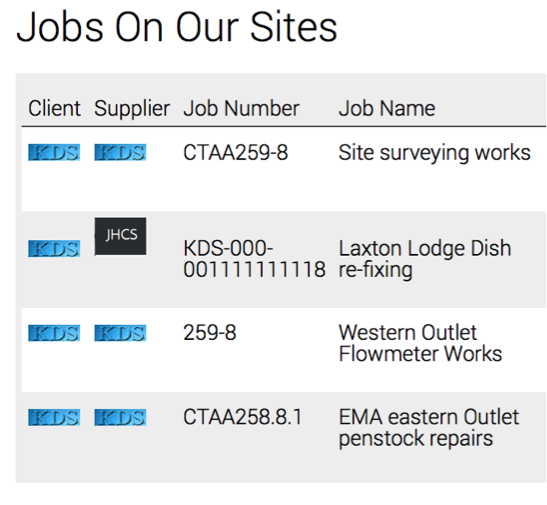
Job Number
Safety PAL allows you to add your own job number to your projects, in order to complete a full audit trail, if you do not add your own job number, Safety PAL will assign a number for you.
Draft Awaiting Completion
A new job waiting for the initial job information.
Completed
Jobs where all work is complete, the job can then be closed and archived.
Ready for Archive
Closed jobs to be moved from job to archived jobs
Job Notifications
Safety PAL will email all jobs notifications to the users who tick the job notification box under the user portal. Under the user portal then edit section, you will find the Notify Jobs tick box. You can find more information about editing users here.

Client Jobs
Bottom of the jobs page you will see client Jobs, providing client and supplier job control.
Client logo
Assigned to the company controlling the job, only on an external job.
Supplier logo
The logo for the company completing the work for the client.
Archiving Jobs
It is important for ease of job views and general job housekeeping to archive jobs which have been completed and are no longer needed in the live dashboard.
Jobs which are complete will have an ‘Archive Job’ button on the right hand side job menu. Click to archive.
Archived jobs can be accessed at any time using the ‘View Archived Jobs’ button on the jobs dashboard page.

Further information on Job actions can be found here.