VolkerFitpatrick Heathrow Airport
This web page is for the VolkeFitpatrick workers who are required to access all safety, health, and wellbeing compliance. And in using the Onwave Location devices
VolkerFitzpatrick Worker Access
Once added, you will receive a ‘complete your registration’ email from noreply@yoursafetypal.com please check your spam, clutter or trash folder.
Clicking the email link will validate your email and provide you with a link as follows.
Home Screen
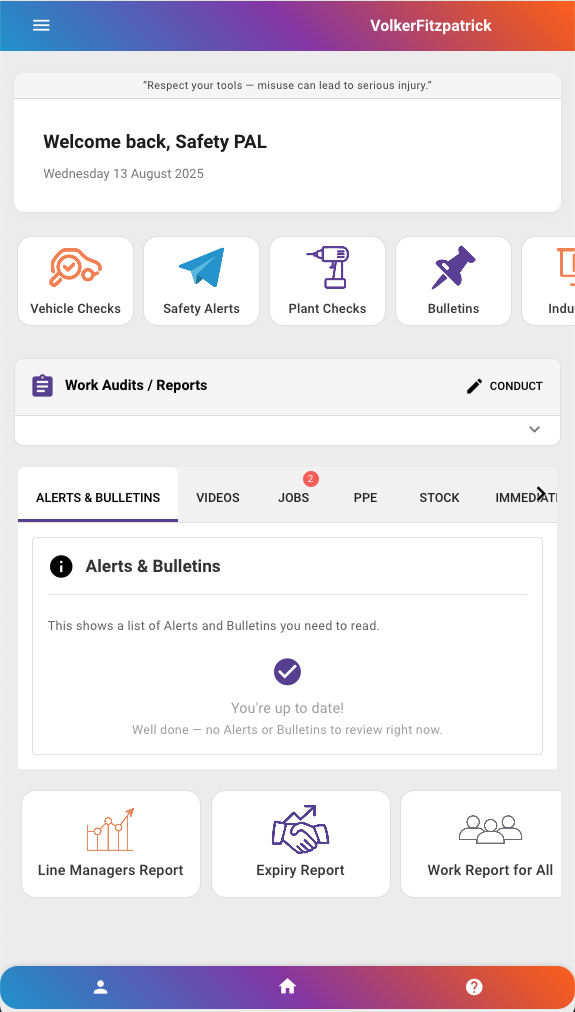
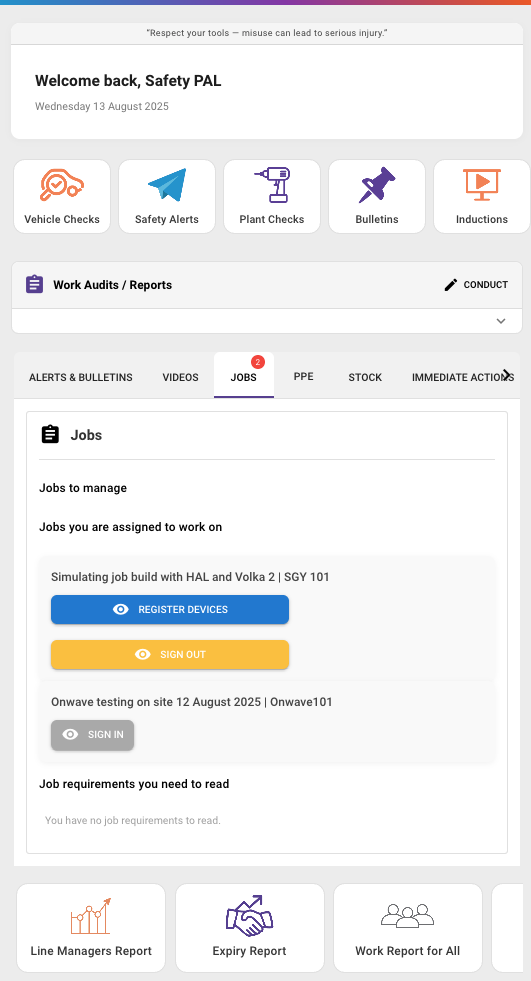
If you are accessing Safety PAL from a mobile device, your home dashboard will be as follows:
The page will show your name as registered in Safety PAL
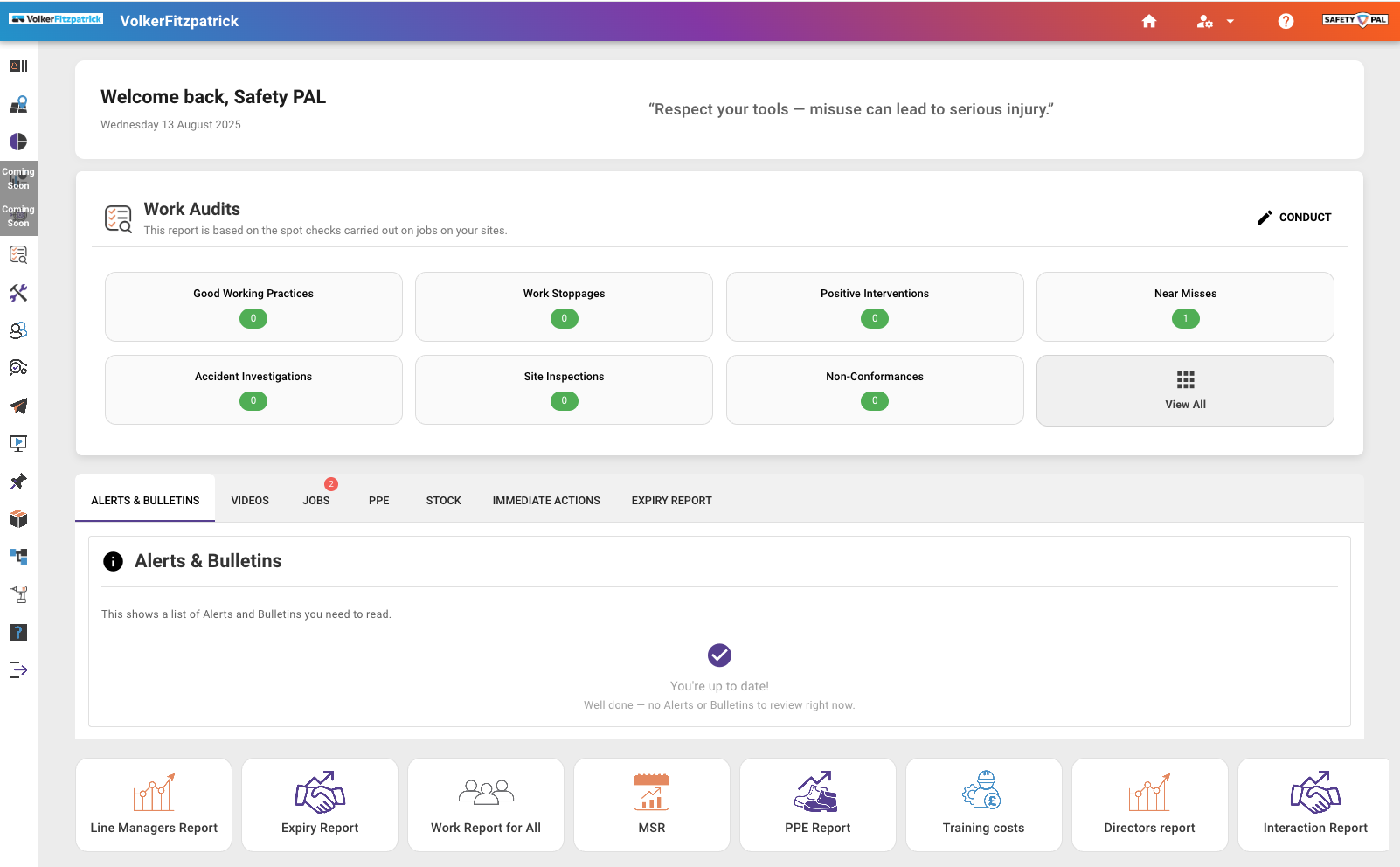
If you are accessing Safety PAL from a tablet or PC device, your home dashboard will be as follows:
You only have a few things left to do. Well done for getting here.
Your Dashboard
Your dedicated Safety PAL dashboard is your centralised view, giving you access to all Safety, health, and wellbeing information with just one click.
The Alert & Bulletin section is your outstanding to-do list, and there are quick links to access jobs.
Click the Jobs Tab to access VolkerFitzpatrick Heathrow Airport Jobs.
Other links will support Safety and Airside compliance.
Vehicle Checks
This will provide you with a list of registered vehicles. Click on the ‘Check Vehicle’ button to complete a mandatory walkaround check. This series of checks is crucial for ensuring the vehicle is roadworthy and safe to use Airside, minimising the risk of accidents and breakdowns.
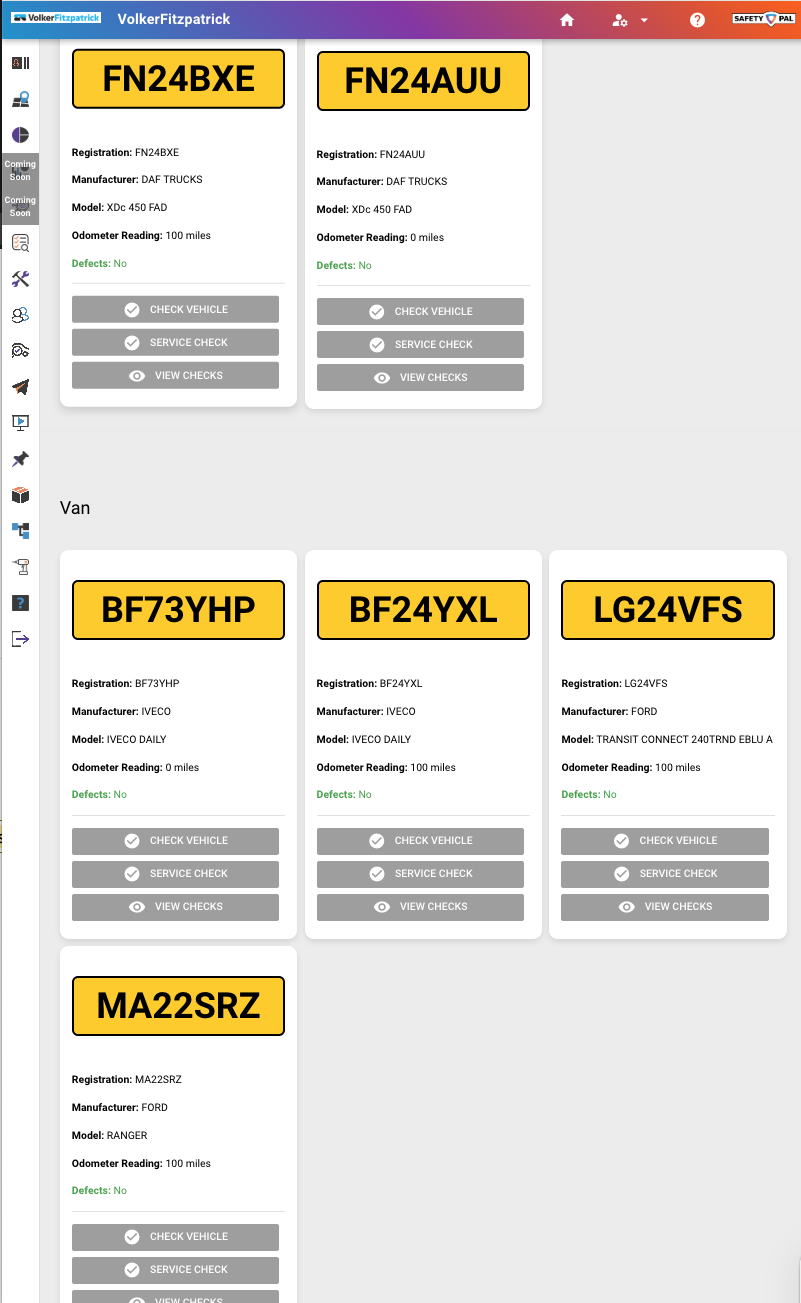
Click on the ‘Check Vehicle’ on the vehicle you are responsible for. You can scroll or use the search facility.
Record the vehicle mileage, then, through your walkaround check, confirm the individual check is completed.
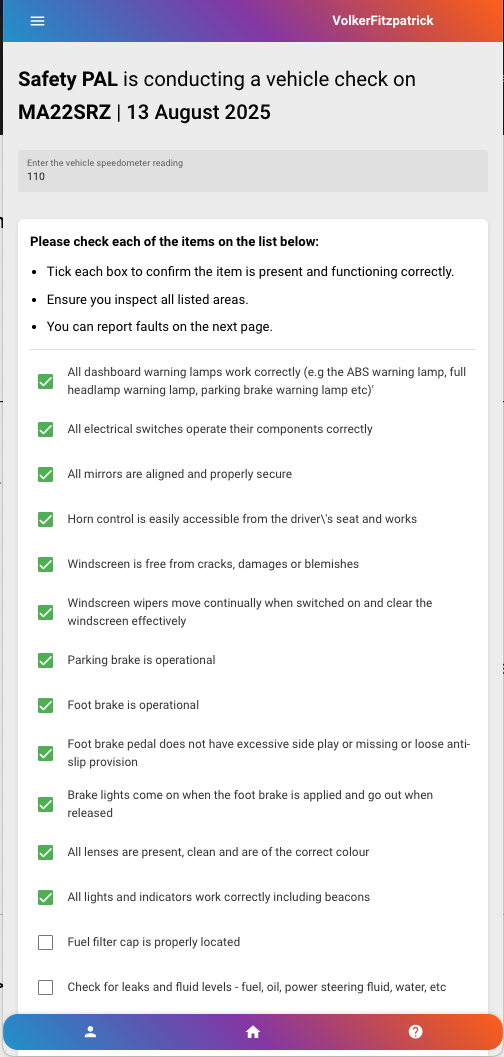
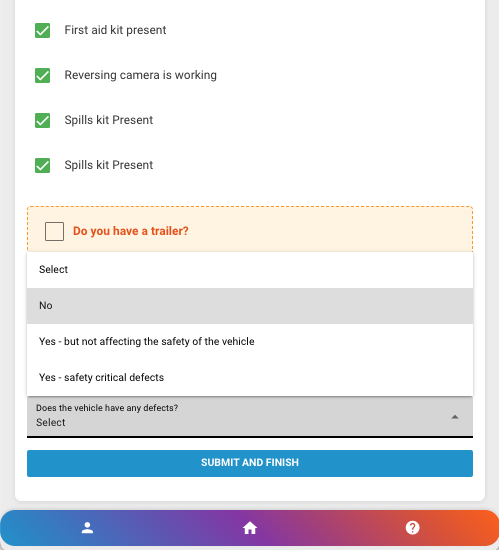
Finally, add any notes and confirm or report any defects.
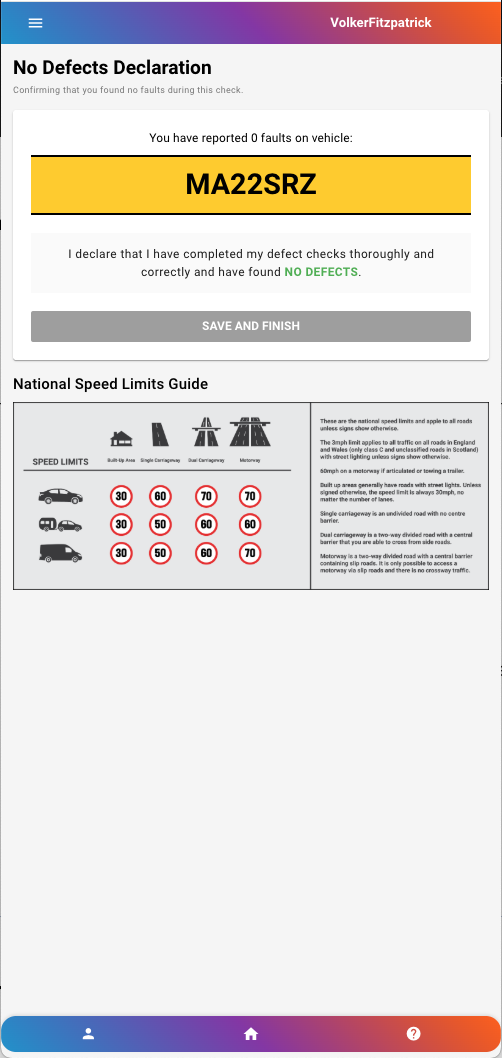
Review the speed limits and other guidance, then click Save and Finish.
Plant and Equipment Checks
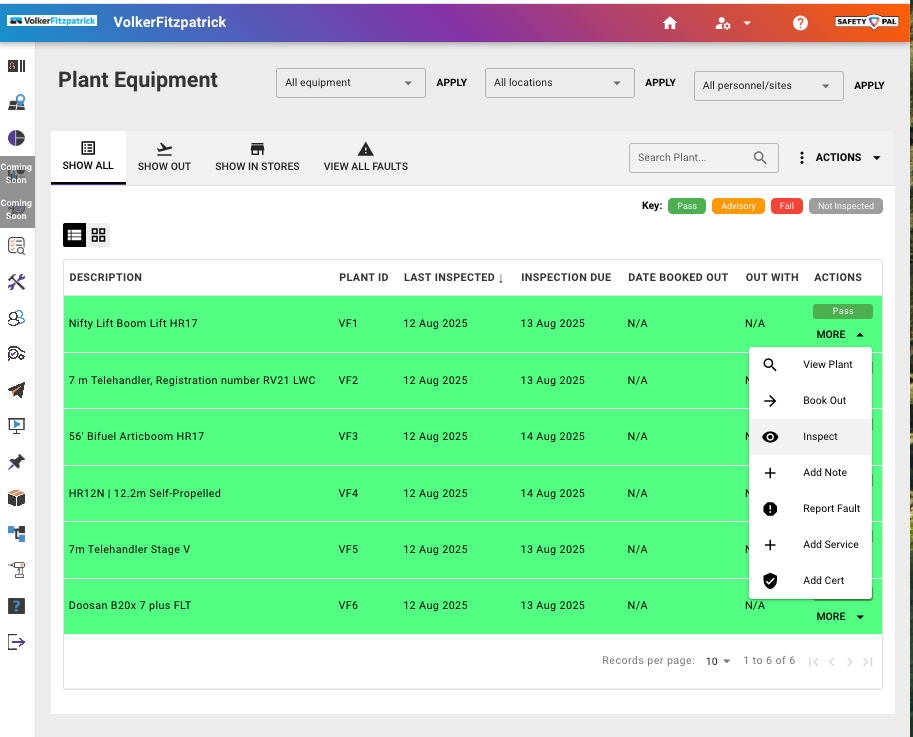
This will provide you with a list of plant and equipment. Click on the ‘Plant Check’ button to complete a mandatory pre-use inspection. This series of checks is crucial for ensuring the plant is compliant and safe to use Airside, minimising the risk of accidents and failures.
Click the ‘More’ button on the piece of equipment you are inspecting, then select ‘Inspect’
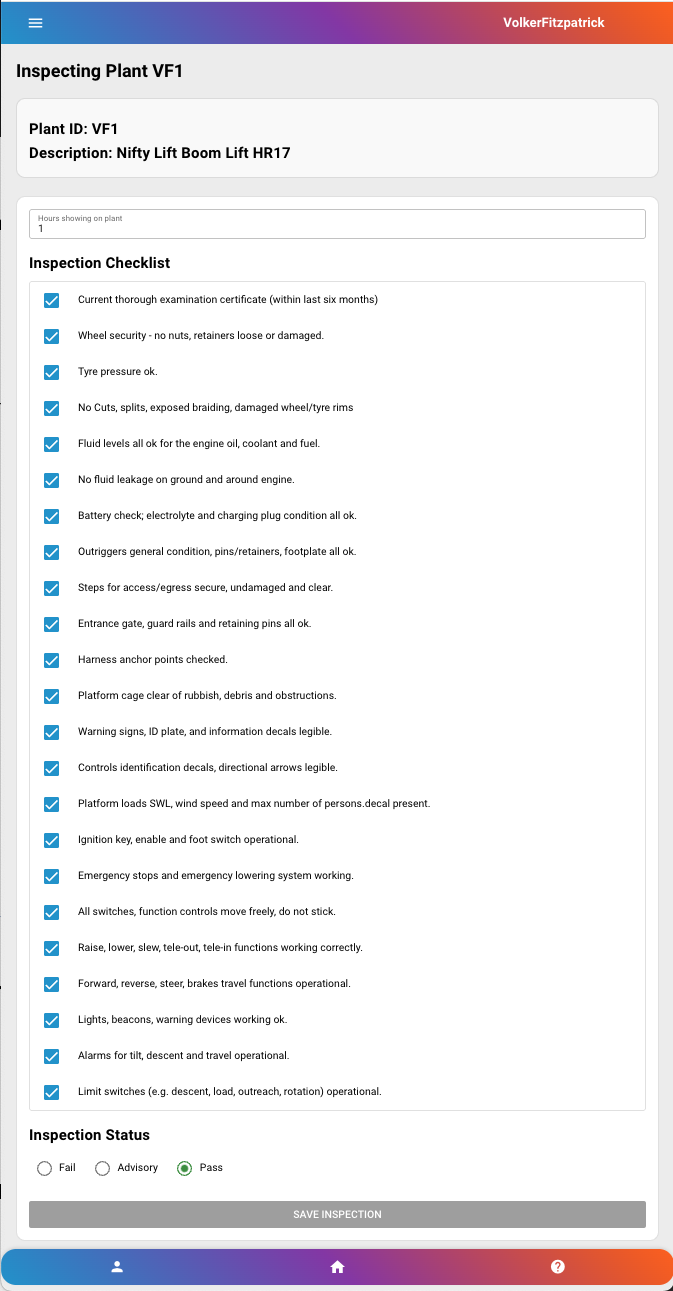
Record the hours (or leave blank if the plant does not provide a record of hours), then confirm the individual check is completed through your walkaround check.
If all the checks are successful—i.e., there are no defects—you will be able to click the ‘Pass’ button.
Then click ‘Save inspection’ at the bototm of the page.
Job Compliance
On your Jobs Tab, you will see one or more jobs requiring your input, such as reading job-specific documents, such as RAMS and Nightly Briefings.
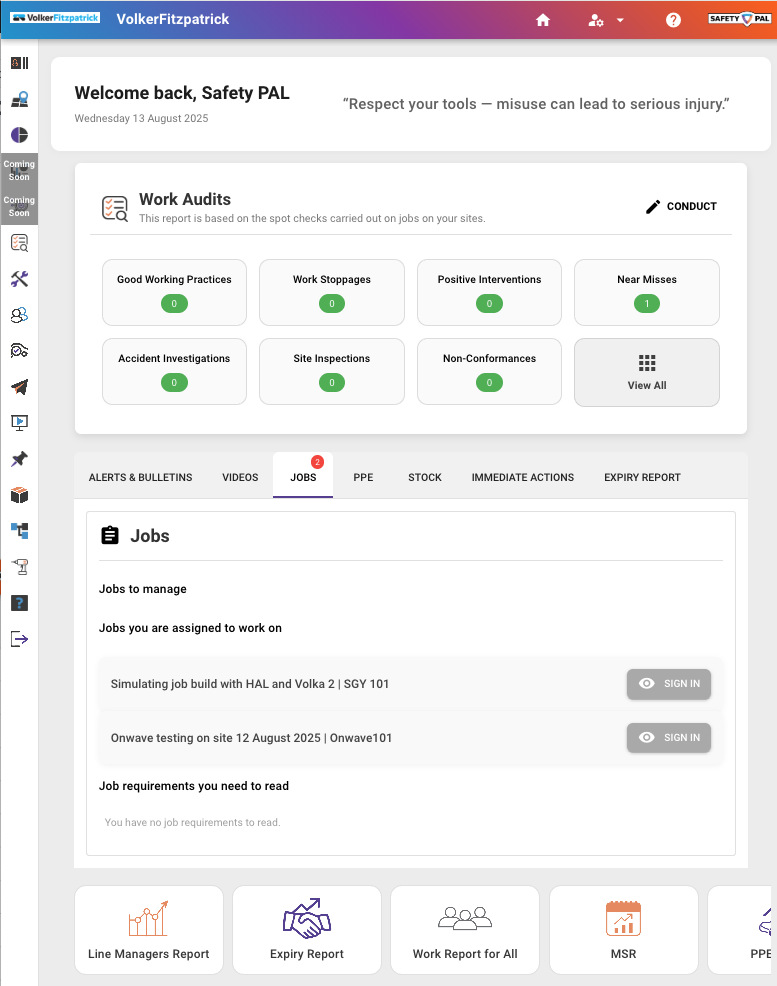
Click on the required job, and you will be presented with a list of job-specific documents to view, read and verify your understanding.
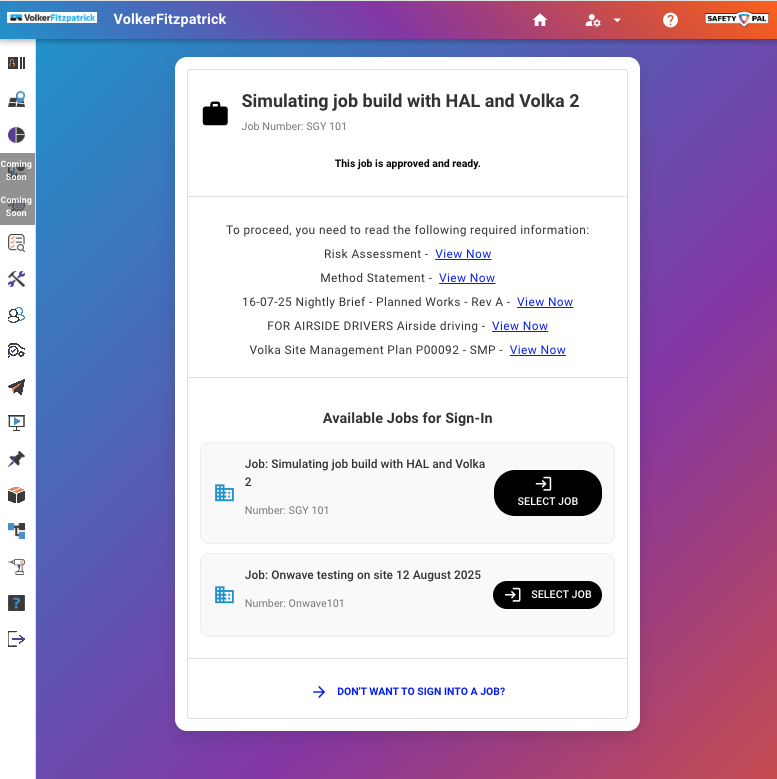
As you click each ‘View Now’ file, the file will open for your review. Once you have read in full, close, and you can confirm ‘Read and understand’
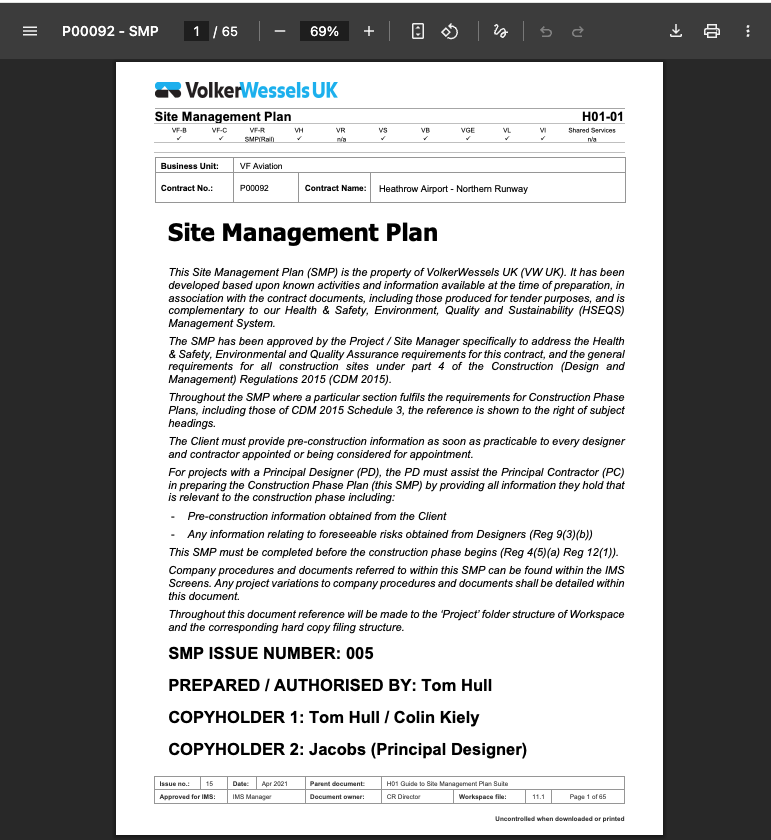
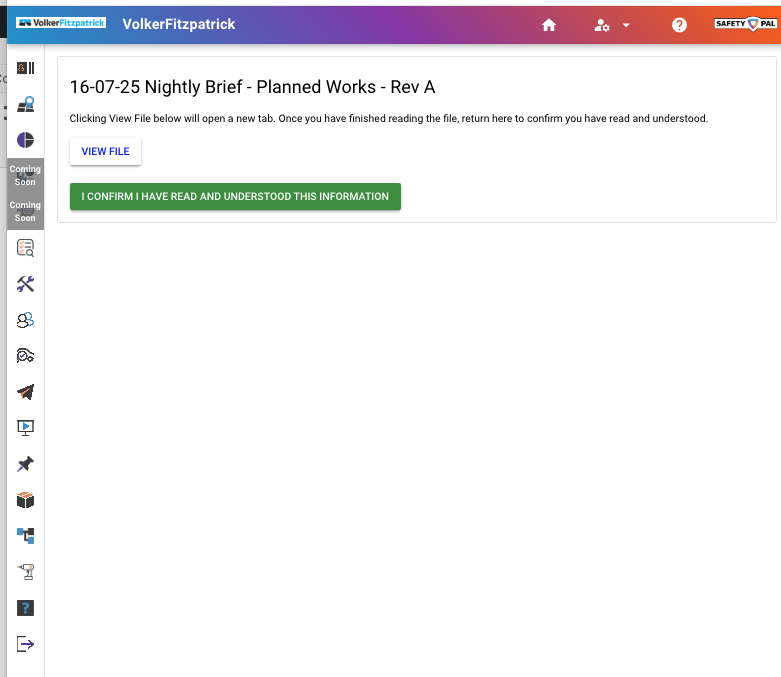
Once you have read and understood all the required documents, you can Sign In to that job and register the location devices for vehicles and plants.
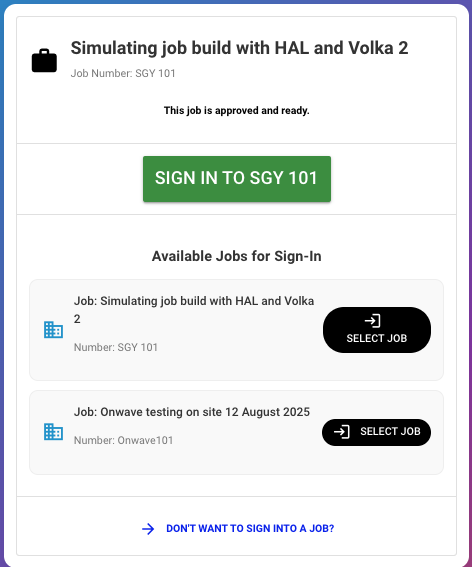
Only a few more stages, which are simply registering the location devices.
Registering Devices
You will locate a device in the VolkerFitpatrick compound. It should be kept on your person. The vehicle and plant devices need to be secured to a vehicle or plant via the device’s magnetic strip.
Important Notes:
- All devices must be registered on Safety PAL before powering them up
- All devices must be powered up outside, allowing them to connect to satellites.
- All devices must have an uninterrupted sight line to the satellites in the sky.
- All devices must be returned to their docking station at the end of the shift.
- All workers must Sign Out of the job to deregister their devices from the job.
Personal Device
You will find the device number on the device. Find the same number in the list and click ‘Register’
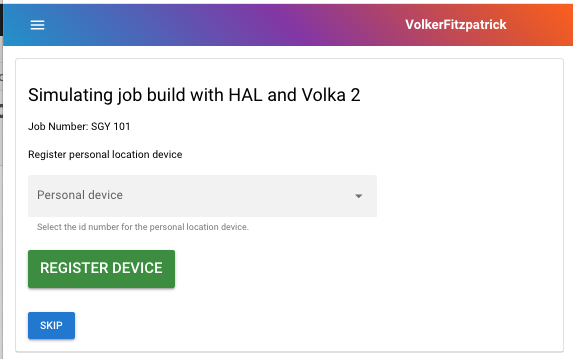
This is your device and must remain with you throughout the shift.
Vehicle Device
You will only be able to register a device on a vehicle that has had a vehicle check and has an up-to-date Airside Pass.
If you haven’t already completed the vehicle check, you will find a shortcut to do so from this screen, befroe registering it location device.
You will find the device number on the device. Find the same number in the list and click ‘Register’
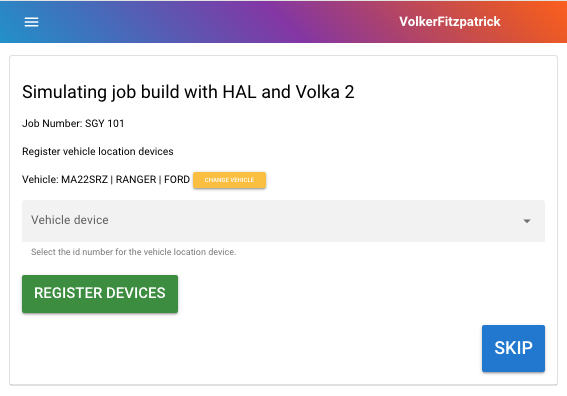
You can click the Skip button if you are not a vehicle driver.
Plant or Equipment Device
You can only register a device on a specific piece of plant if that plant has valid PUWER/LOLER certificates and has had a pre-use inspection for the day of the shift.
If you haven’t already completed the pre-use inspection check, you will find a shortcut to do so from this screen before registering the location device.
You will find the device number on the device. Find the same number in the list and click ‘Register’
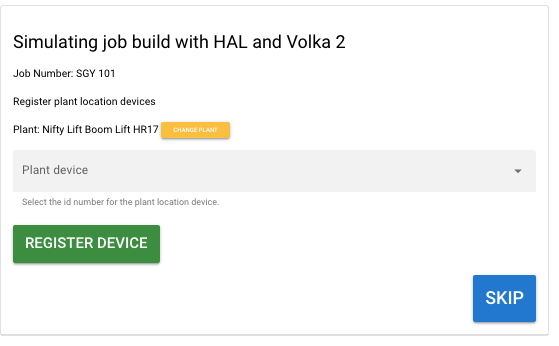
You can click the Skip button if you are not a responsible person using the plant or equipment.
Working Safely.
You should now be live in Safety PAL with a minimum of one device (Personal)
Your device will track your location and warn you via an indicator light and alarm if you:
- Enter an unpermitted zone
- Come near the vehicle or plant which is in use/moving.
- If you are a driver, alert if you are close to another worker with an Onwave device.
These are both vital to your safety and the safety of those around you.
Please follow all guidance and instructions, work safely, and support maintaining a safe working environment.
Once you have finished your shift, return all devices to their docking stations and Sign Out of Safety PAL.
If you have any questions, please contact your line manager. We will endeavour to resolve your query quickly.