User Profiles
Add all your employees, temporary staff, suppliers, and contractors to distribute all the H&S information required to ensure company compliance.
Explaining the User Page
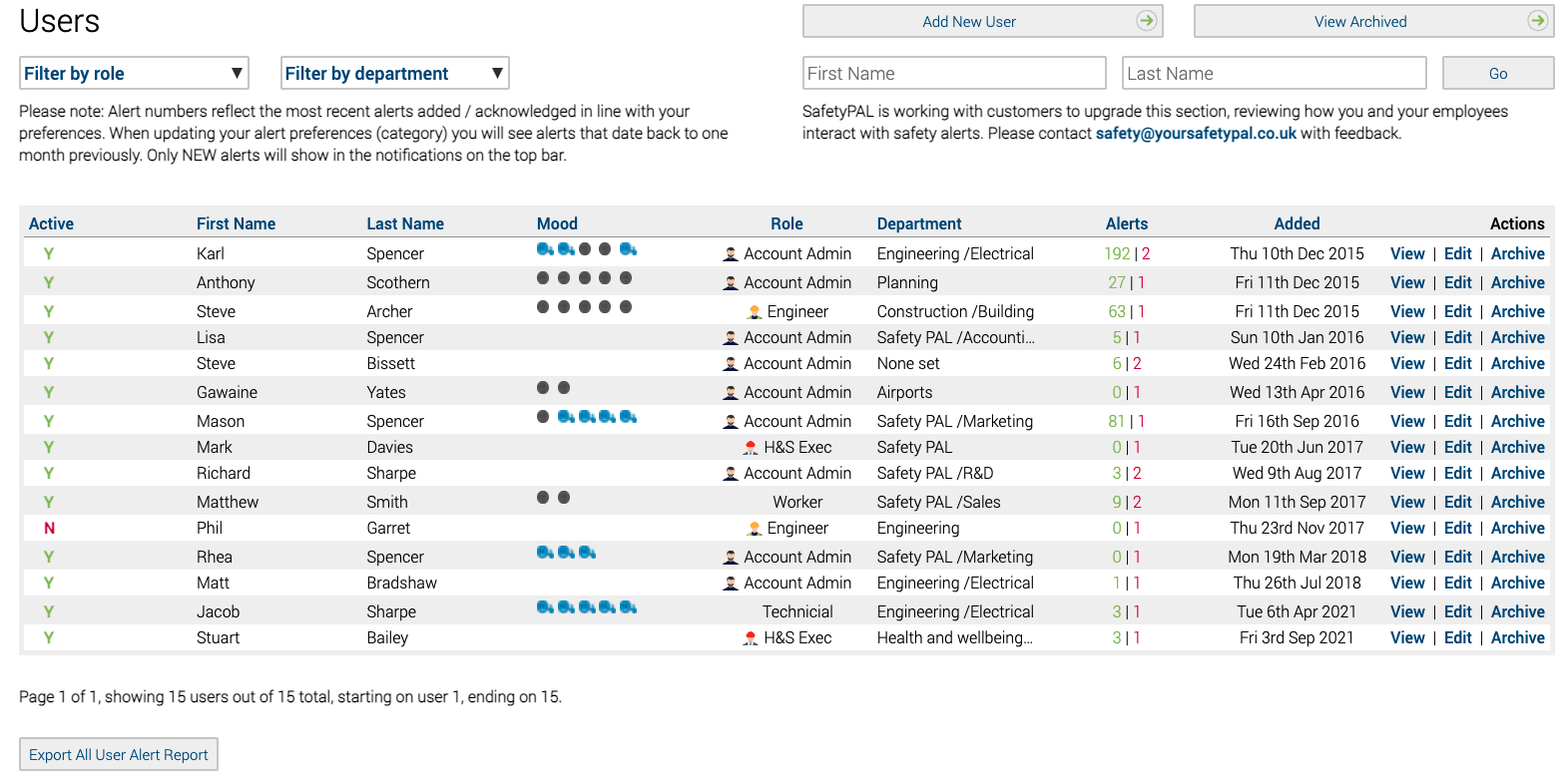
On the user page you will be able to add new users, view archived users, search users by last name and first name, archive old users, filter the users by role and department, and view and edit users.
You will also be able to see what users have activated their account, and how many alerts they need to read and have read.
(Safety PAL is currently upgrading this section to make it more user friendly)
Add Users:
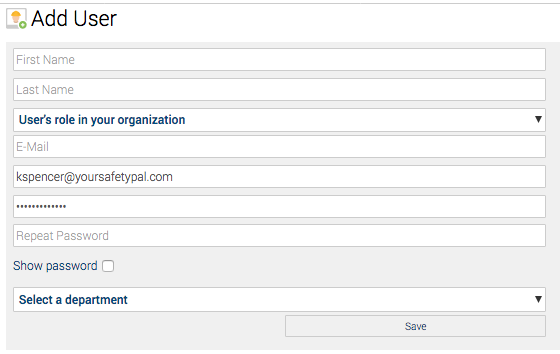
- Click User > Add New user
- Add their first name.
- Add their last name.
- Select their role in your organization.
- Enter their email.
- Add their mobile Number.
- Add a password (the user can change it later if required)
When selecting the new users’ role in your organisation, please refer to the following explanation.
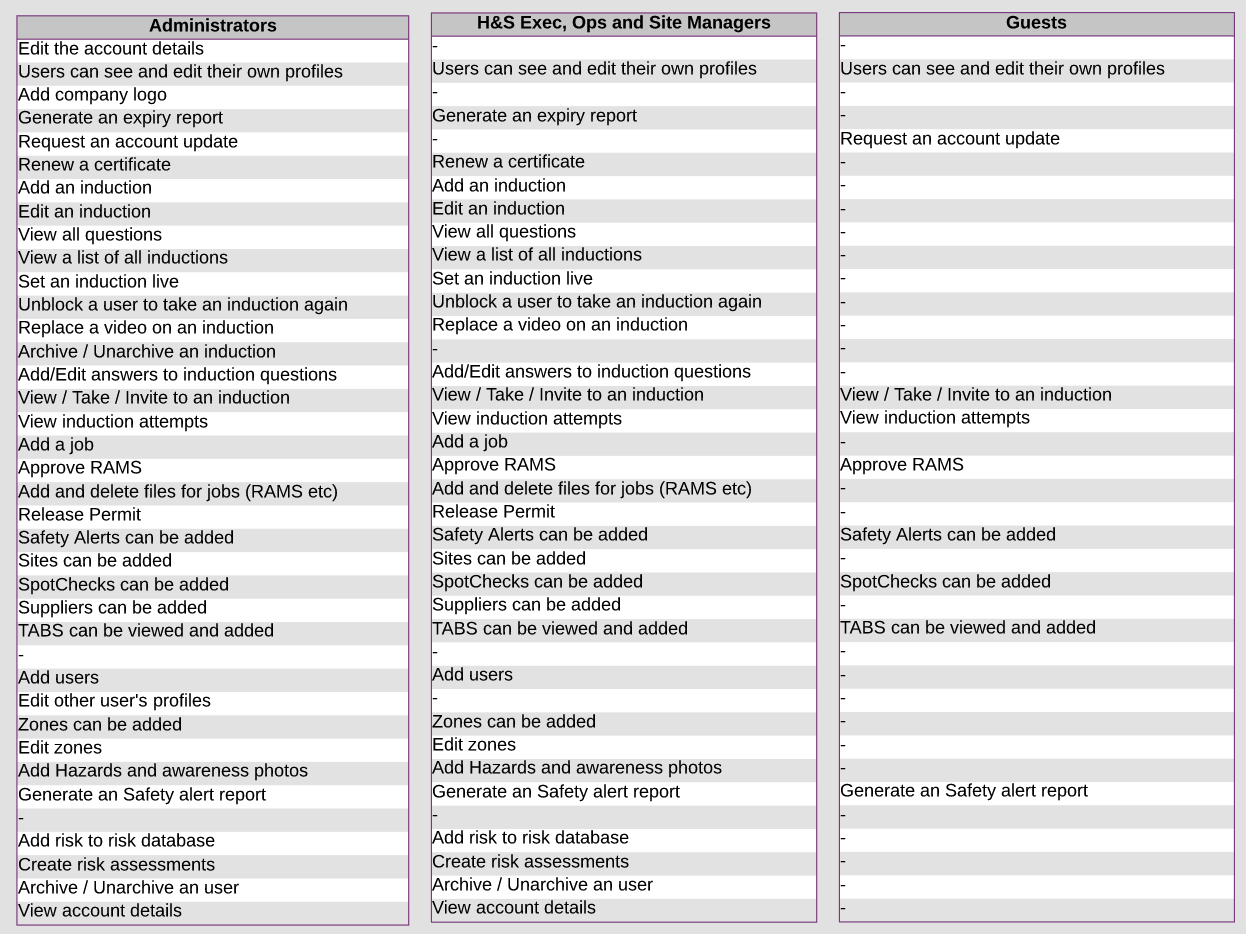
Save their details and your new user will receive a notification email asking them to activate their account, the user clicks the ACTIVATE button in the email and their account will then be live.
Activate a users account
Assign a manager
To support development and protection, each user has a manager assigned, managers can manage multiple users.
If a user requests further training, Safety PAL will create an email and send out a notification to your assigned manager notifying them of the request.

Configure employee fatigue settings
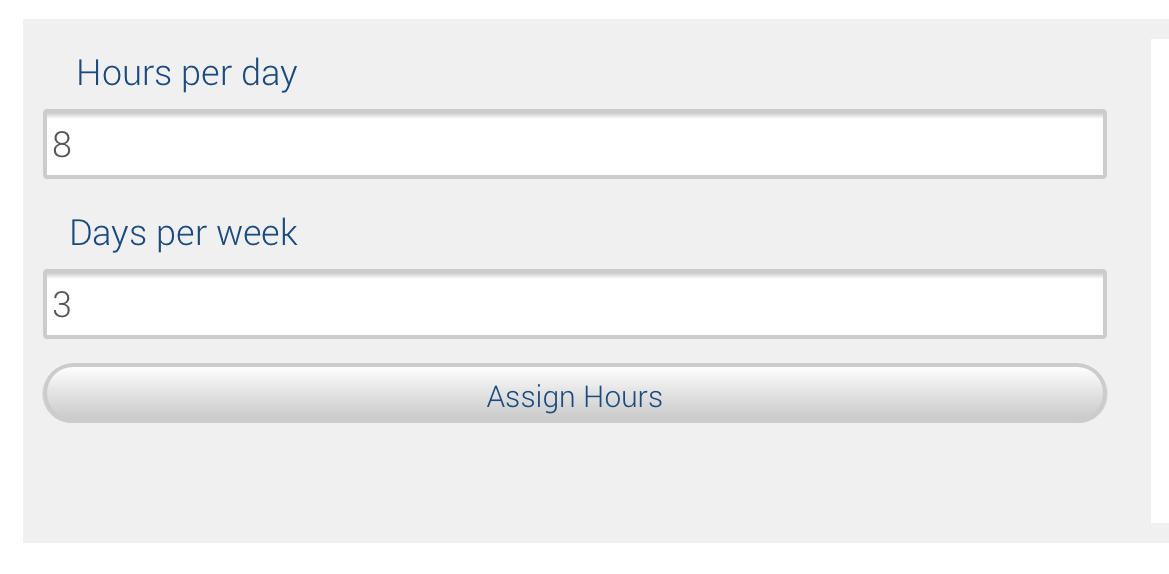
Set your employee ‘Hours per day’ and ‘Days per week’ in order for Safety PAL to create your management seven days fatigue report
Need to receive in-app notifications and or emails?
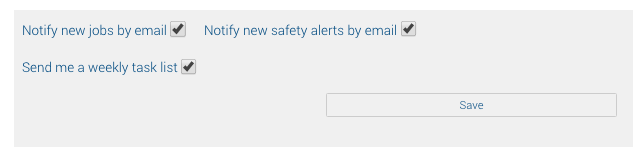
If you are the person who needs to receive your company’s informative notifications via email, then you have the option to click to receive multiple emailed notifications as shown below.