Safety PAL helps you through the job setting up process. It provides stage confirmations as and when you complete each stage.
Once you’ve have added any or all of the required elements, Safety PAL will allow editing, before confirming the job. Safety PAL’s audit trail will ensure you complete the correct stages, in the correct order, on each and every job.
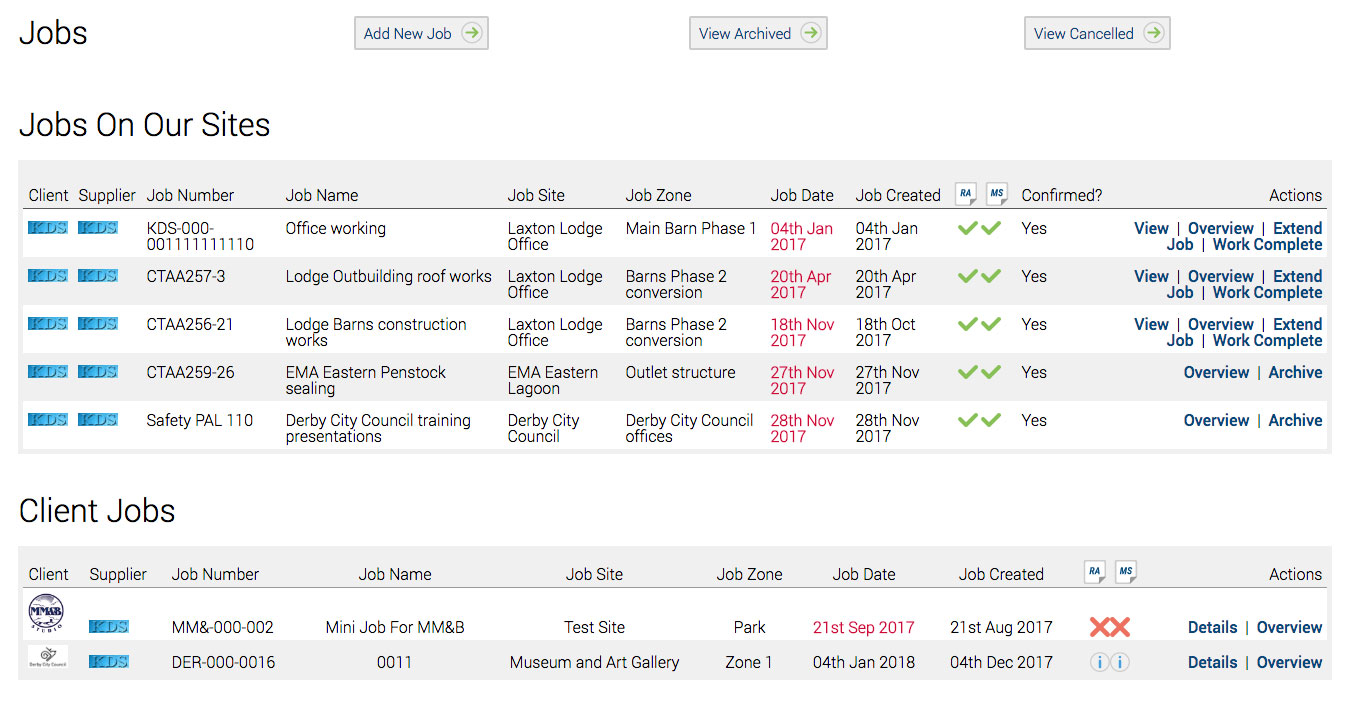
Click on Jobs from the left-hand menu to see the main Jobs page.
Click the Add New Job button at the top of the page.
You’ll be required to select either…
Internal Job
A job in your company for your employees
External Job
A job you are assigning to your suppliers or contractors
Click whichever and let Safety PAL guide through the further stages.
Setting up your Job
In each input box, Safety PAL details the requirement in order to help you create quicker and smarter jobs.
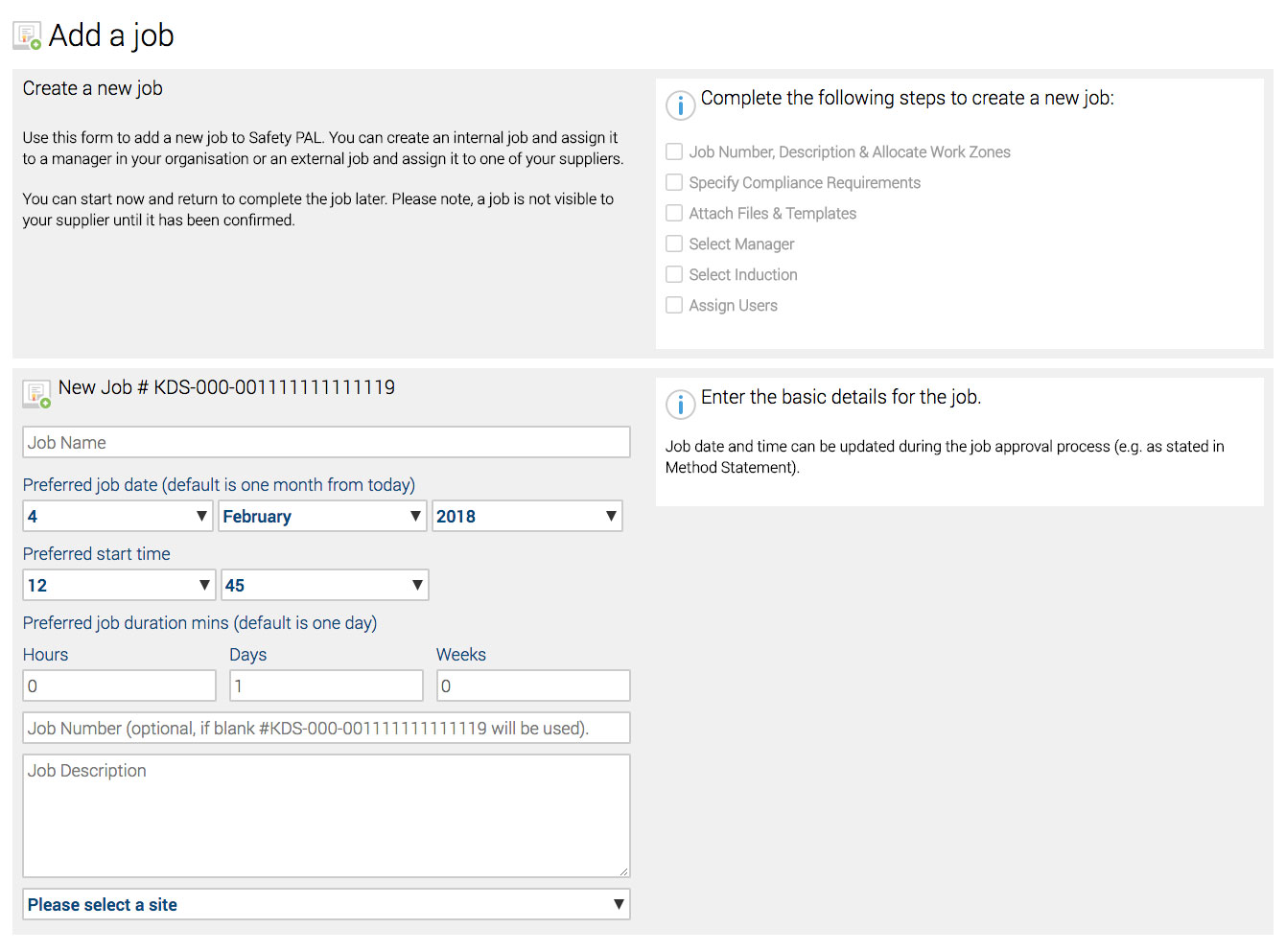
- Enter your job title
- Select preferred job date and the job’s time and duration (you can change later on)
- Add a job number or allow Safety PAL to assign one for you (this is needed for audit records)
- Type in your job description (the description all worker’s will see when Signing in to that job)
- Select your pre-loaded site from your list of sites (see more information on sites here)
- Select the specific work zone including hazards where the workers will be completing their task
Finally, once you are happy, save and proceed to the next step.
Note: Under the following steps, you can return to any section to edit before finally typing CONFIRM
Detail any pre-requisites you require
You can detail what you require before work can start. These may be work permits, certain Risk Assessments, procedures and or specific insurances from suppliers/contractors.
If you set the requirement for adding specific job requirements or documents, you will be then asked to upload your document/s. Your uploaded document/s will require approval from managers who you will select further in this process.
You can of course at any time, choose to skip any selection if you have a simple task or job.
Select a Manager for the Job
The job manager you add (from any user in your organisation) will be required to control and approve the job and also will be able to upload the Risk Assessments, Method Statements and or other required job documentation.
Safety PAL provides primary and secondary management of the job you are building.
Type the first 3 characters of the manager’s email and Safety PAL will display all matching users.
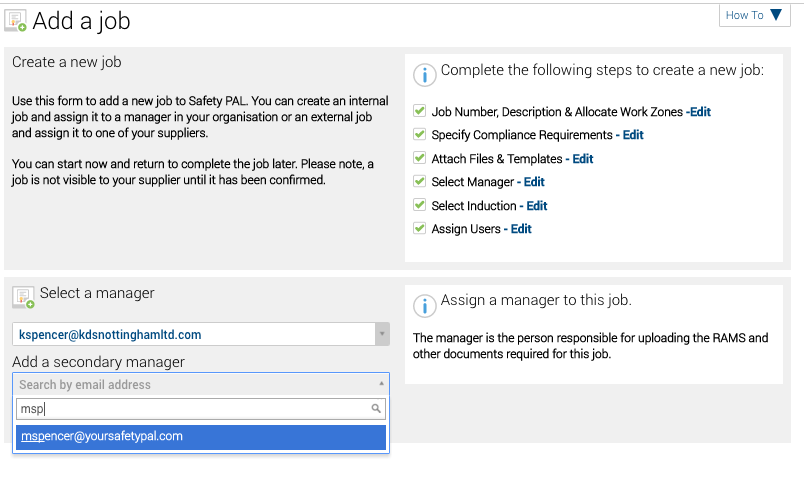
Note: The Job manager does not have to be a manager in your organisation, he/she is only assigned as a primary or secondary manager of this specific job.
Need to include Inductions or Training Videos?
You may need to add specific site inductions or job e-learning videos to prove competance. This section will allow you to add single or multiple video/s, selectable from your library. See more information on adding inductions here.
Once you’ve added your video, Safety PAL will ask you to move on or select another.
As under job documents, you can of course at any time, choose to skip adding a video selection.
Assign Duties to Colleagues
Lastly, you will be asked to assign job duties to your colleagues.
Note: these are not the specific workers (added here), but managers who control works and workspaces.
In small organisations, the same person can do multiple tasks, Safety PAL allows you to assign multiple roles to a single supervisor or manager.
Type the first 3 characters of their email and Safety PAL will display all matching users.
Confirm the Job set-up
You have now completed all your job details. Your process flow items should be green and edit will be shown on the right.
You can click the edit; this will take you back to that specific section for you to complete any changes you require. Editing is unlimited, this can be completed as many times as you require until you close the job and confirm it.
IMPORTANT: Once you type CONFIRM, the job specifics cannot be altered
Now you are ready to confirm the job and set it LIVE, so the risk assessment and method statement can be uploaded.
Type CONFIRM, then click enter to save and move the job over to the jobs page.