Legislation and Management standards require all companies to be proactive in managing workers’ fatigue.
How to keep track of fatigue management:
From your Safety PAL dashboard, you will see the button
‘View total time worked by each staff member in your company’

Clicking the ‘View total time worked by each staff member in your company’ button will take you to the ‘Work Report for all staff ‘.
Use the Year / Month picker and click Go to show the report for the selected year and month.
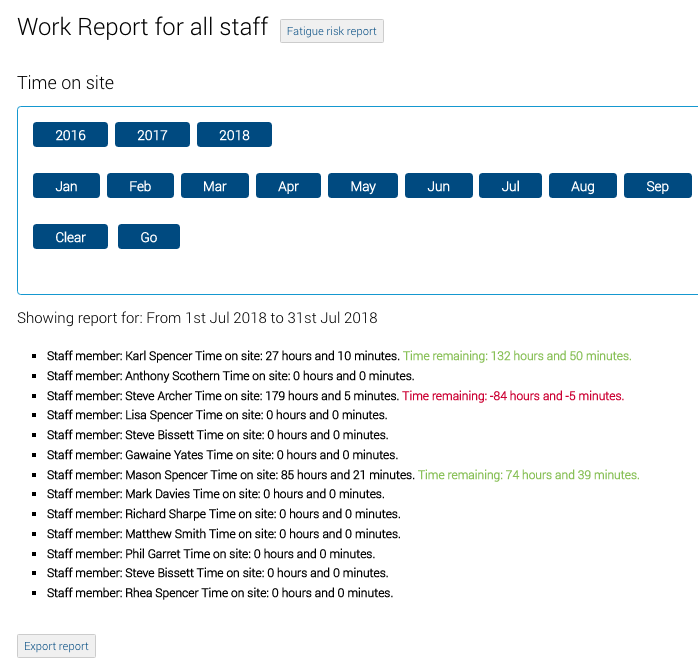
The image above shows the report for July 2018 and includes all staff members in your business who have signed IN/OUT of jobs.
Safety PAL then highlights over and under working hours in Green and Red.
At the very bottom, you have the option to ‘Export Timesheet’ click the button to export all staff members’ time records into a CSV file (Comma-separated values) to be used in many areas of your business.
The downloaded CSV should show in your browser download section or may show instantly depending on your browser settings.
Fatigue Risk Report
Fatigue management should be a high priority in any business and if you weren’t aware is a requirement under current legislation.
Like other parts of H.S.E.Q, Safety PAL has the tools you need to reduce management time and resources.
At the top of your ‘Work Report for all staff’ next to the report title you have the option to create a ‘Fatigue risk report’
Clicking the button allows Safety PAL to create a fatigue report (as shown below) based on your staff members’ last seven days of operations.
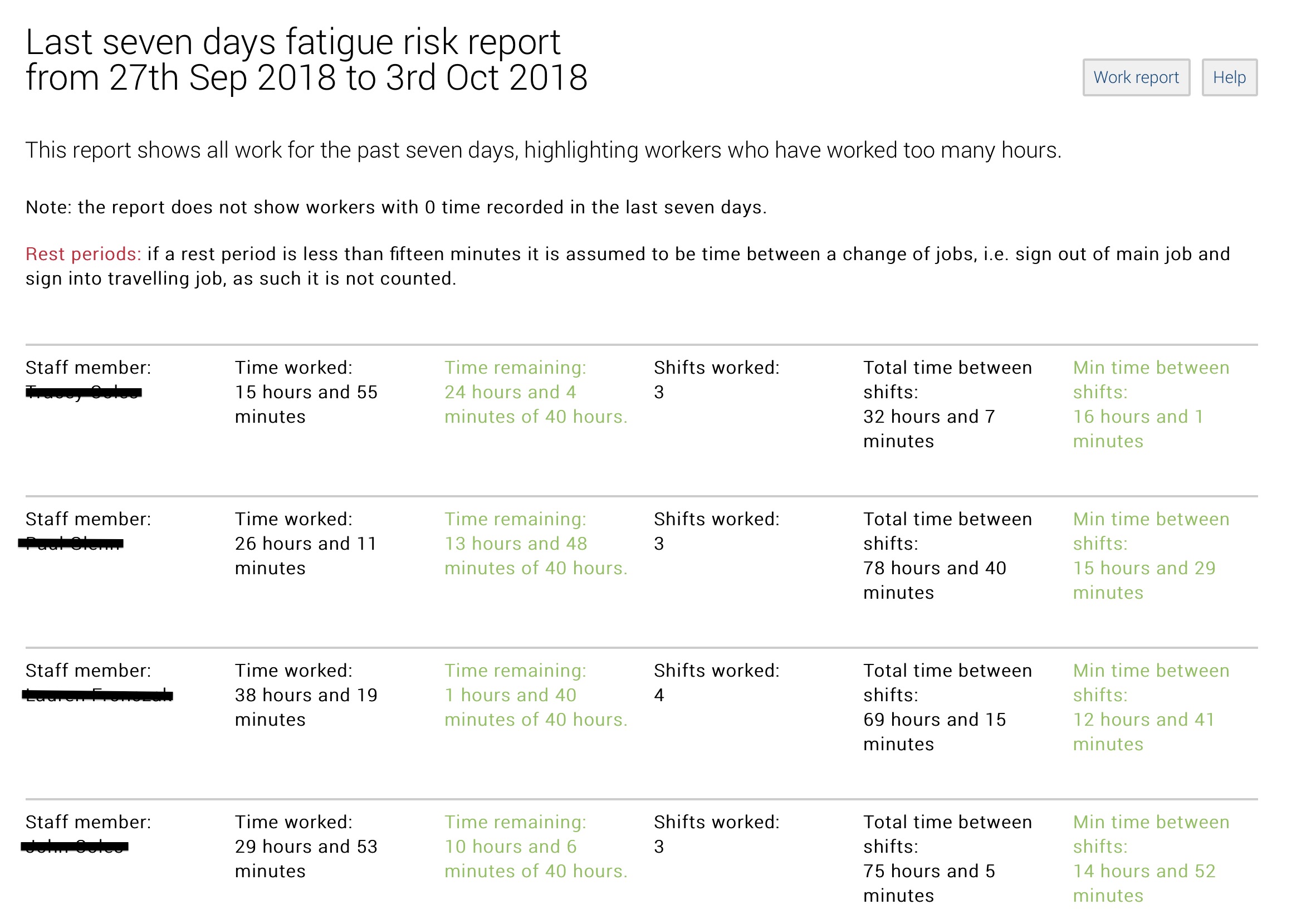
Based on multiple design parameters we have developed and incorporated into our complex algorithms various fixed settings to ensure your compliance:
The fixed settings are as follows:
- Workers’ hours can be configured under the individual users account
- The workers ‘Over Shift Hours’ alarm will turn text red once the work hours are greater than 12 hours per shift. Else the text remains green
- The workers ‘Under Rest Hours’ alarm will turn the text if the minimum of 12 hours between shifts has not been achieved. Else the text remains green
- The worker ‘Shift pattern’ is set to activate if the worker works more than alarm 13 shifts in 14 days.
For clarity…
- If a single shift is over 12 hours a warning will be shown
- The time remaining for each worker is shown in green along with their total availability – if they go over this it turns red
- If a worker does more than 13 shifts in 14 days then a warning is shown on their report.
- A shift is a continuous signed in period or two or more sign in periods with less than 15 minutes between shifts
- If a rest time of more than 15 minutes but less than 12 hours is recorded, this will show in red as an insufficient rest time
Don’t forget, managing fatigue is not just about recording hours past and planning future works, but reducing tiredness, poor performance, and accidents by managing and monitoring effectively and competing risk assessments, here is our help section on
Adding Risks