What can line managers’ notes be used for and how:
Having a complete overview of all workers you have direct responsibility for is a necessity.
To gain access to the Line Manager Report Function, the button is located on your dashboard next to your name.
By clicking ‘Line manager Report’ you will be taken to a full list of all the users you are assigned to as their Line Manager.
If you are not anyone’s line manager, the page will detail this.
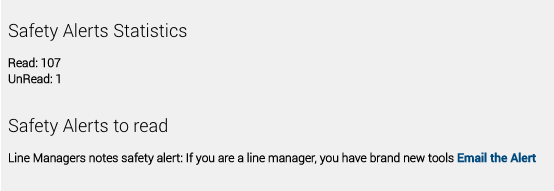
This first section of the Line Manager Report is ‘Safety Alert Statistics’. The image below shows:
- Alerts Read: Here 107
- Alerts UnRead: Here as 1
Any outstanding alerts needing to be read by the specific user will be listed here.
You also have the ability to ‘Email the Alert’ by clicking on the ‘Email the Alert’ link.
The user will receive an email including a link to the specific alert
Also, the ‘Safety Alert Report’ will automatically update – More details here
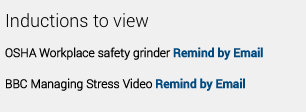
The next section show any outstanding videos/inductions the user needs to retake – this list is built on previously watched and expired and or being invited to watch.
As included under the ‘Safety Alerts, Statistics’ you have quick link tools to remind the user via email.
The ‘Induction Report’ will automatically update based on the new invite invites sent – More details here
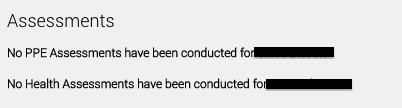
In Safety PAL, you have tools to complete Assessments. This section of the Line Manager Report lists only the Users outstanding Assessments – i.e Assessments not completed.
The image below image shows you as their Line manager, you need to complete:
- A PPE Assessment for XXX
- A Health Assessment for XXX
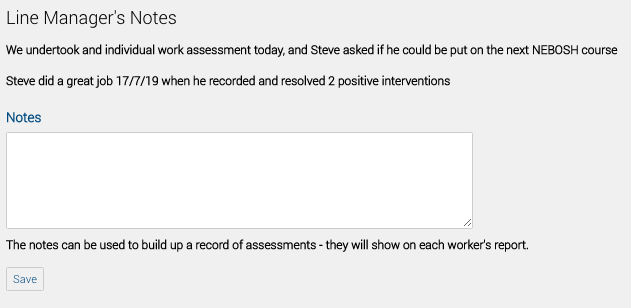
The next section gives you the Line Manager the tools to record anything you feel will help the improvement of the competence of the user.
Each record added builds up a list, as you can see from the two entries in the below image completed for this user.
Once you have entered your Notes, click the save button to complete the entry.
The ‘Work On Site’ button takes you to a selection tool where you can recall all the users hours while at work.
More information on this time report can be found here
The final section of the Line Manager Report is the ability to send the user a personalised reminder based on the Safety Alerts and or Inductions outstanding.
Simply type your personal message and click ‘Send Message’
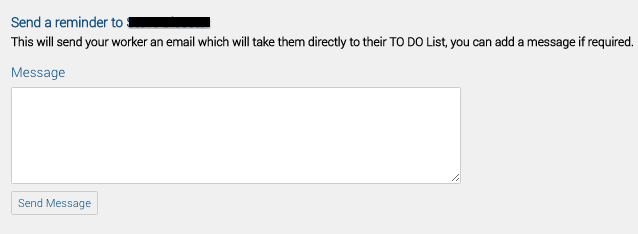
The user will receive an email including your notes and also a direct link to their TO DO List which is where all the user’s outstanding actions can be seen..
More information on TO DO Lists here.