
Under your company account, you have the option to manage workers and job hours
Individual Workers Hours
From your user account, click ‘Work on site” in the top right hand corner
Use the Year / Month picker and click Go to show the Time Worked value
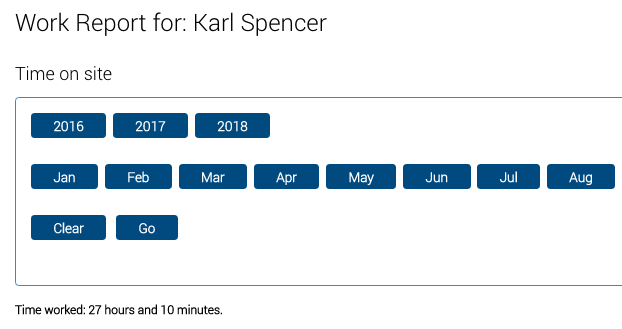 The image above shows ‘Time Worked in 2018/July’
Managing other workers hours.
If you are a registered account admin, you can repeat the above for any worker in your account.
Managing Job Hours
Businesses need the option not only to manage workers individual hours for payments or general knowledge, but also job hours for project management responsibilities.
Safety PAL has this covered.
From the Jobs screen (Main left menu) , click the ‘Overview’ button on the right hand side on the specific job you are wanting the hours for (see image below).
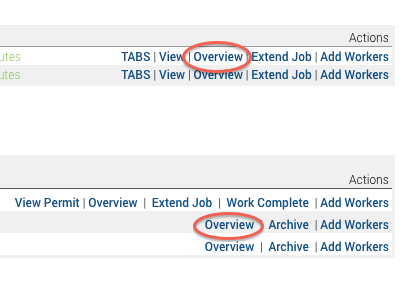
The next screen you will see will be your full job overview screen, you will need to scroll down to ‘Work on site’ section to see all workers signing IN/OUT timings
Lower down, Safety PAL also creates job specific totals.
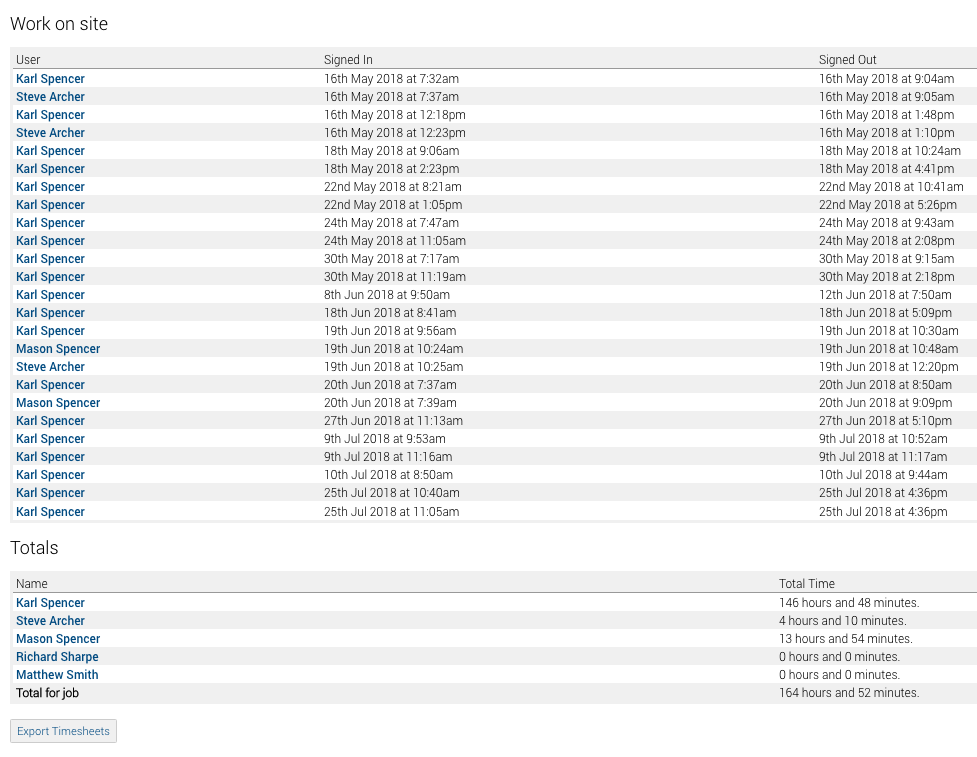
At the very bottom of this section you will see the button ‘Export Timesheets’ use this to export all job time records to a CSV (Comma-separated values) format to be used on many areas of your business.
The downloaded CSV should show in your browser download section or may simply show instantly depending on your browser settings.
Other useful job information can be seen by clicking here