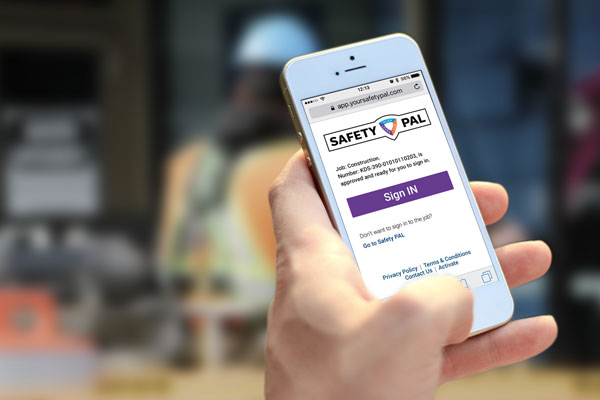
If there is a job ready for the worker when a user logs in, they will be presented with the option to Sign In to that specific job.
Click the SIGN IN button and Safety PAL will log that user into that job on your site.
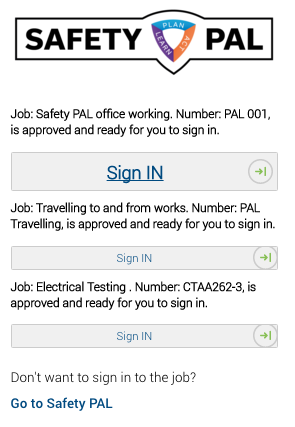
If you have multiple jobs available for the day or week, then click the representing job Sign IN button as shown here.
If job documents need to be read, the worker or contractor will be inhibited from the Sign IN process until all documents have been read and understood as shown here.
The worker will need to click the button ‘Task List’
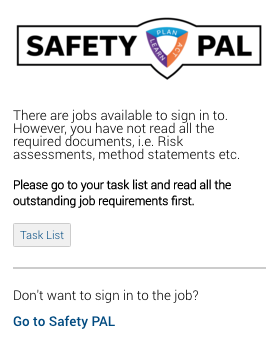
Note: If you see the above screen and don’t wish to Sign IN, use the Go To Safety PAL button which takes you directly to your dashboard.
The next screen the worker or contractor will see is the ‘Safety Tasks’ screen where all documents needing to be read and understood are listed under ‘Job documents you need to read’
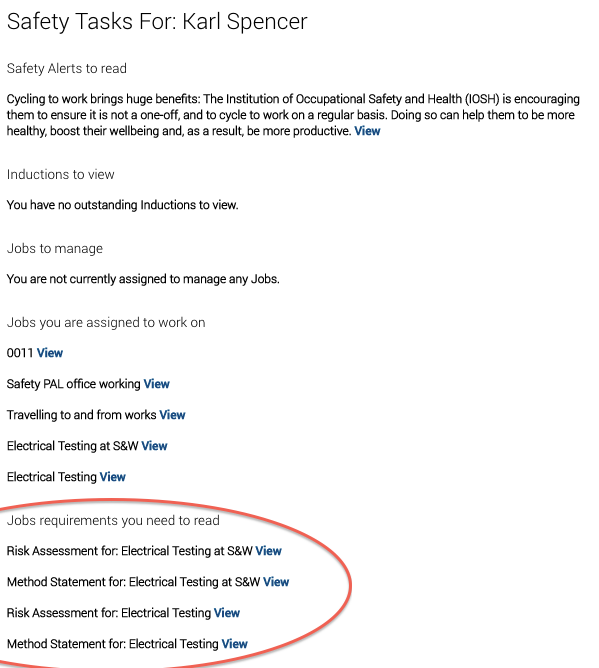
Clicking on the ‘View’ link will take to you the View and Read screen as shown here
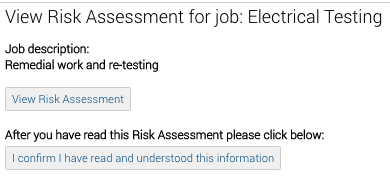
The user has the option to ‘View” and then once viewed, to click Read and Understood.
Until the document has been read and understood, the user will not be able to Sign IN to that specific job protecting both the worker, management and clients.
Once all the checks are complete and the worker / contractor has read and understood all documents, they will need to return to the login screen where the Sign IN button will now be shown.
Following on from Sign IN, the job manager will receive an email notification of the user on-site and the manager can then complete a TABS (Talk And Be Safe) talk.
If a user has signed in, the next time the log in screen appears, the user will have the option to SIGN OUT.