
Stock Reports
This module is an addition to the standard Safety PAL product.
Check other pages related to stock reports – Stock Management
Permissions:
Permissions are designed to control user interactions, determining access to specific features and functionalities.
See other related pages to User Permissions and Roles
Available reports:

Safety PAL Stock module (Specific to the company account) includes reports and tools as follows:
- Search by stock name (Page defaults to all stock)
- Enter a stock name and click Go to reveal a list of stock, stock details, category, location and quantity.
- Request report (Page defaults to all requests)
- This report allows you to create an online report to filter stock requests by:
- Job number
- Site name
- Requested by
- Date From and To
- This report allows you to create an online report to filter stock requests by:
- Location Report (Page defaults to all stock locations)
- This report allows you to create an online report to view all stock in a specific location.
- This report also shows Stock added and taken, giving you a complete list of stock actions by site location.
- This report allows you to create an online report to view all stock in a specific location.
- Stock Takes:
- This inventory process allows you to count and verify the quantity of goods at your site or specific location.
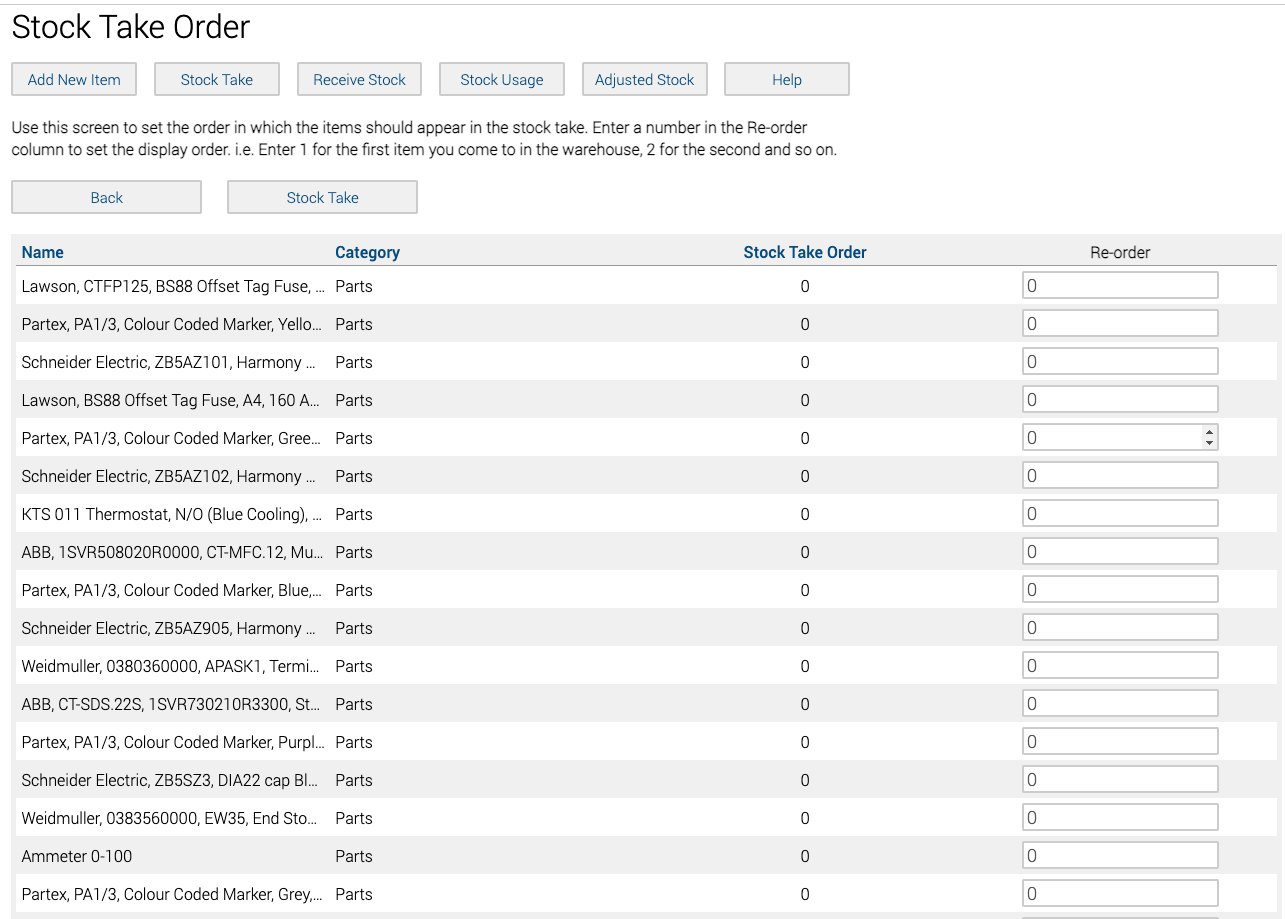
- Stock Take Order:
- It allows you to set the order in which your stock items are listed, which speeds up stock-taking.
- Receive stock:
- The online form allows you to add stock quantities from new purchases
- Deliveries:
- A delivery report shows you all stock deliveries
- Stock Takes:
- Reveals a list of your company stock takes.
- Archive Stock:
- Creates an instant report of all archive stock items.
- Stock Locations:
- Allows you to manage stock locations
- Stock Usage:
- You can search specific people and categories to check who has used what.
- Adjusted Stock:
- Shows a report where stock has been adjusted as part of the stock take process.
- Current Stock:
- An instant report including costs and locations of all stock in the business.
Request report
This page defaults to all requests.
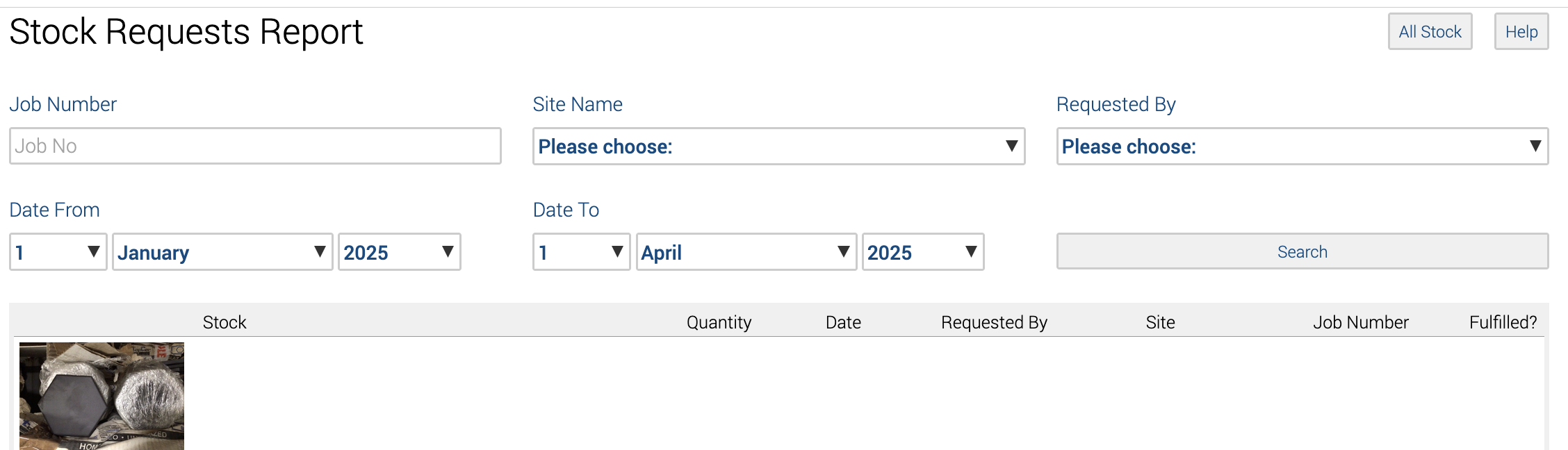
Use the search box, selection filters, and date range fields to create a dynamic report tailored to your needs.
Location report
This page defaults to all locations.
Use the selection list to filter by your locations.
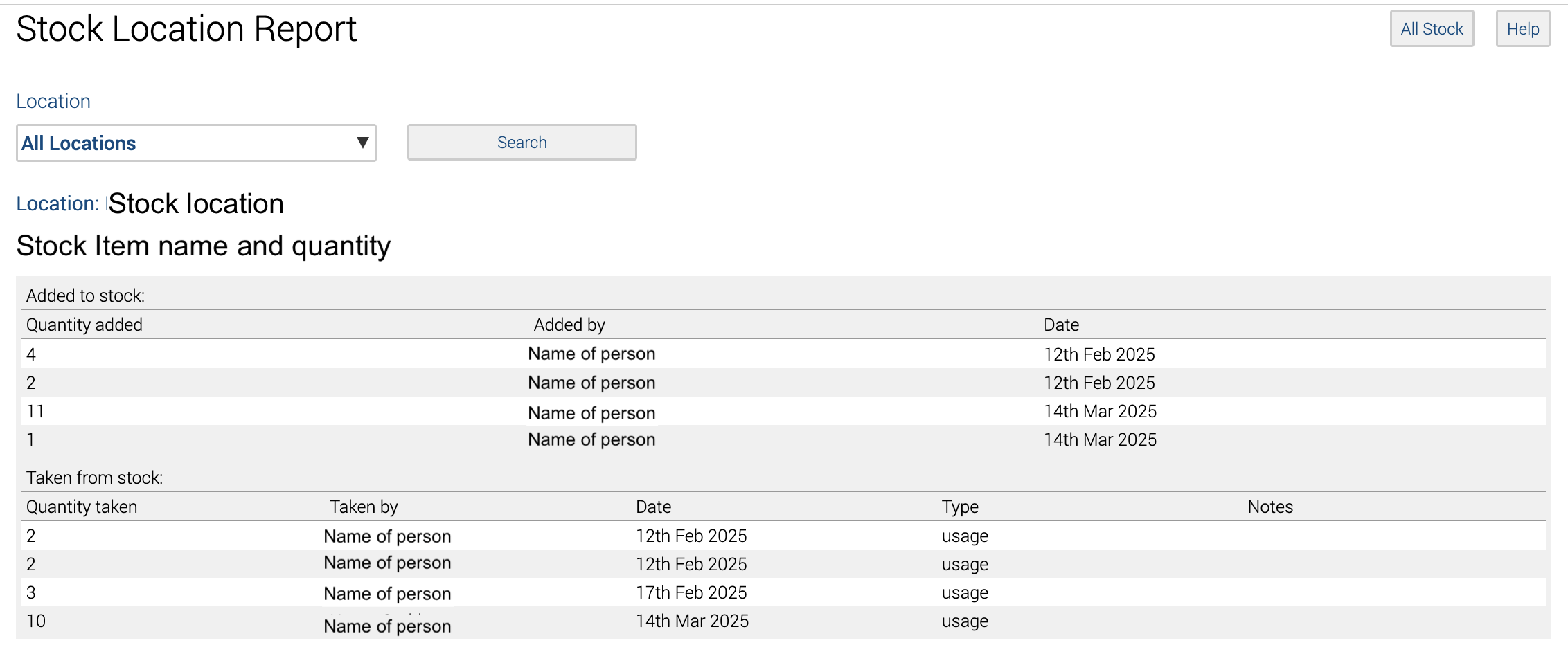
Depleted and added stock are shown by name, date, and quantity.
Stock Take Order
You can determine the order in which the stocks are listed during the stock take to expedite the process.
If no order has been set, the stock order will default to what has been added.
You can use the headers to arrange items in ascending or descending order.
Stock Takes
This page defaults to all Stock Takes completed.
Use the view button to show that stock take.
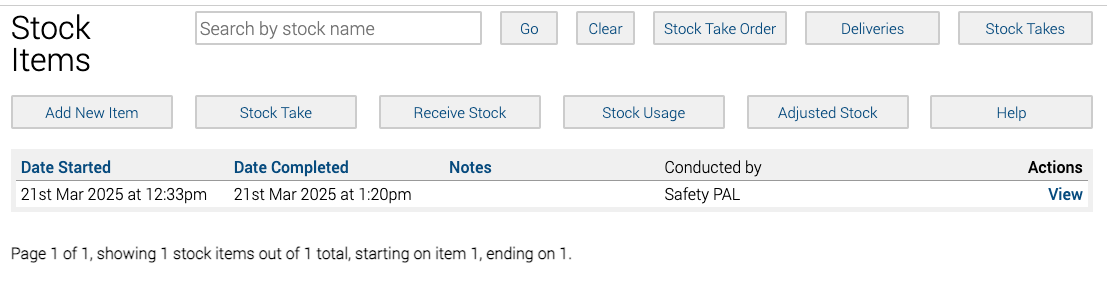
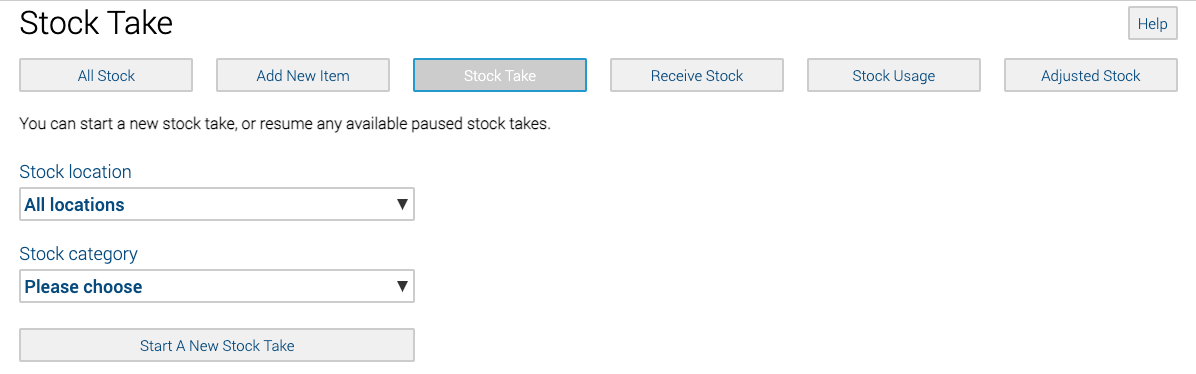
Clicking Stock Take will take you to the stock take page. You can select categories and locations where you are completing the stock take.
For requesting and issuing stock, please visit the following help page.