
Stock Management
This module is an addition to the standard Safety PAL product.
Assign Stock, manager,
From ‘View Account’ add your Stock manager

Stock managers will receive the confirmations from users upon requesting stock from the Stock Request Form.
Stock Request Form
Access the request stock form from your To-Do List.

Enter the equipment name to search for a specific item or category of items.
Add your quantity, select your site and add job number as shown in the screenshot below.
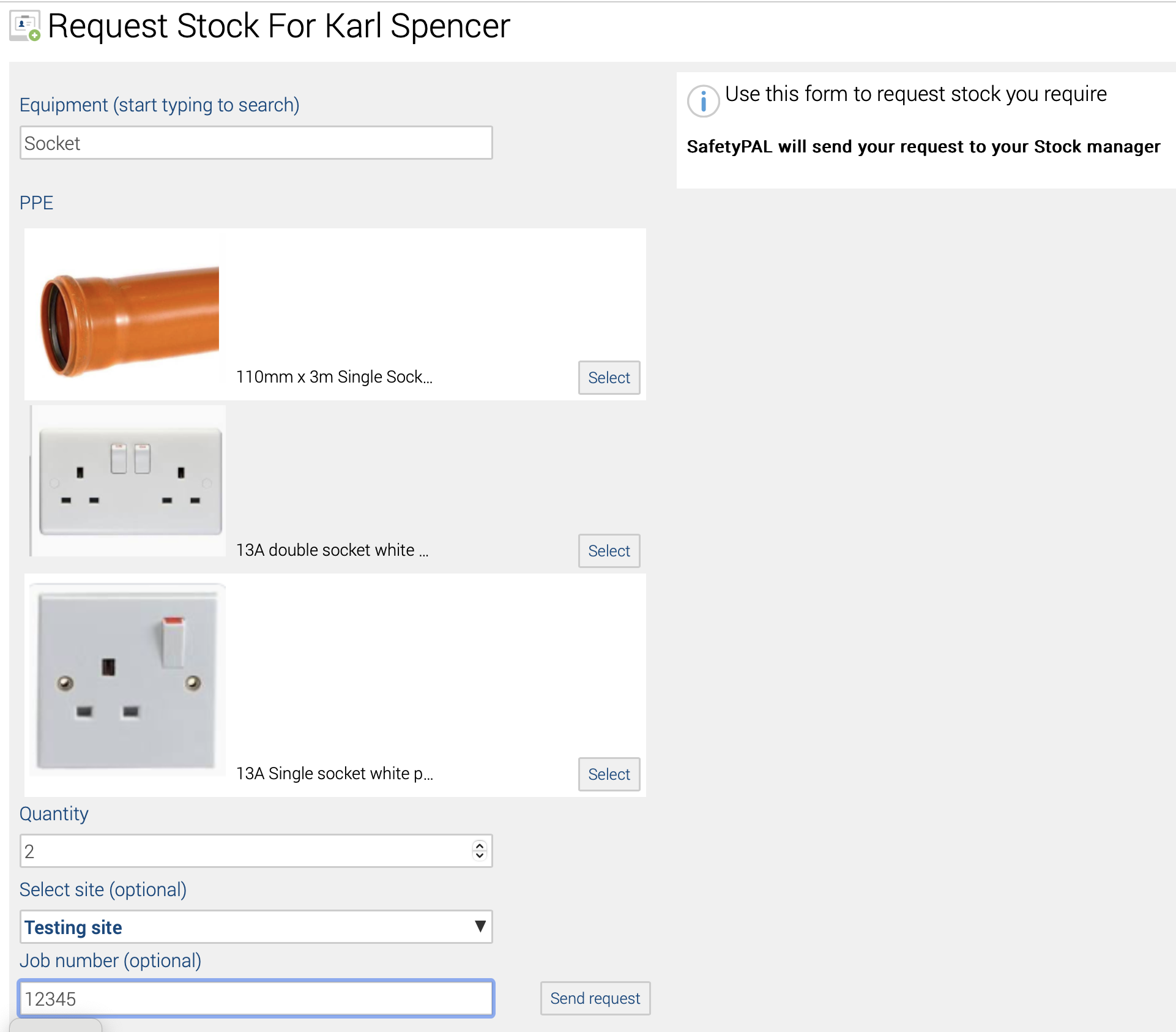
Once everything is correct, click ‘Send Request.
The Stock Manager will receive an email with the requested stock details, and you will receive a confirmation of stock request email.
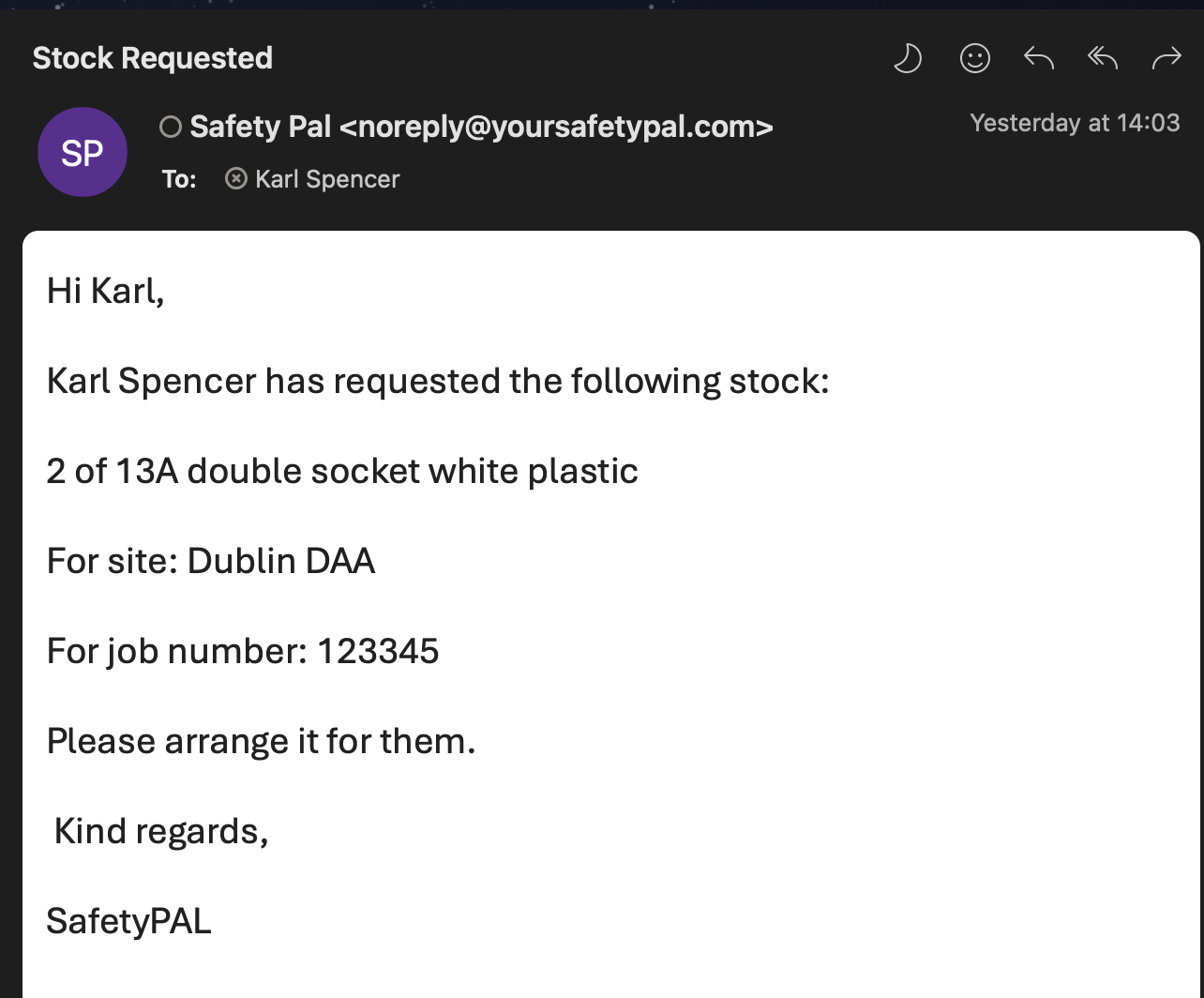
Stock Dashboard
The link to the main stock dashboard is under the business reports (Managers only) section of your Safety PAL main dashboard.

The stock dashboard is laid out as follows and provides you with a full overview with links to:
- Search for a stock item.
- Add a new item.
- Complete a stock take
- Receive new stock or stock from a site
- Stock usage
- Adjusted Stock
- Current stock.
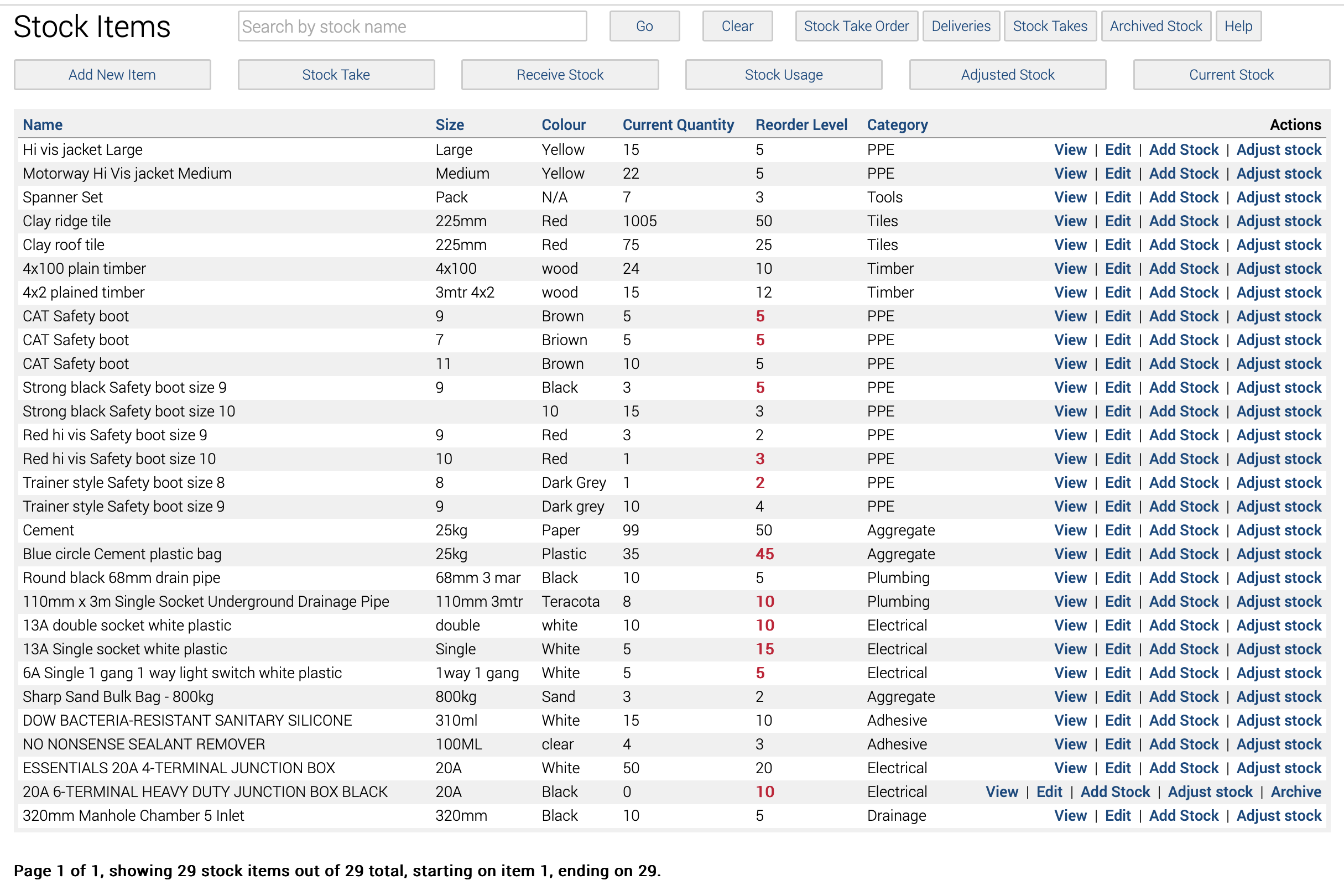
The right-hand side of the item description provides you with links to:
- View – See the item details
- Edit – Edit the details of an item
- Add Stock – Add new stock for that item
- Adjust Stock – Make adjustments outside of depletion or stock takes.
- Archive – Archive an item that is no longer required but only if the stock level is zero.