
The left menu bar contains the systems main menus.
Each individual menu reveals a submenu, which allows you access to systems operations.
Clicked on section turn white for ease of knowing where you are.
Hover over each item to reveal help text.
Each submenu reveals an individual help video to help you the user understand more and complete.
The top menu bar contains…

Site Name
Click on the site name, then enter the name of your site to quickly display the setting and access to tools for that site. If you have multiple sites, Safety PAL will display all across multiple pages.
Jobs
This icon will show live details on any jobs you have to review and or approve; clicking will take you directly to the jobs page
Safety Alerts
A key feature in Safety PAL, this live information point will show individuals how many new alerts and if they have outstanding for review. Clicking will take you directly to your alerts page.
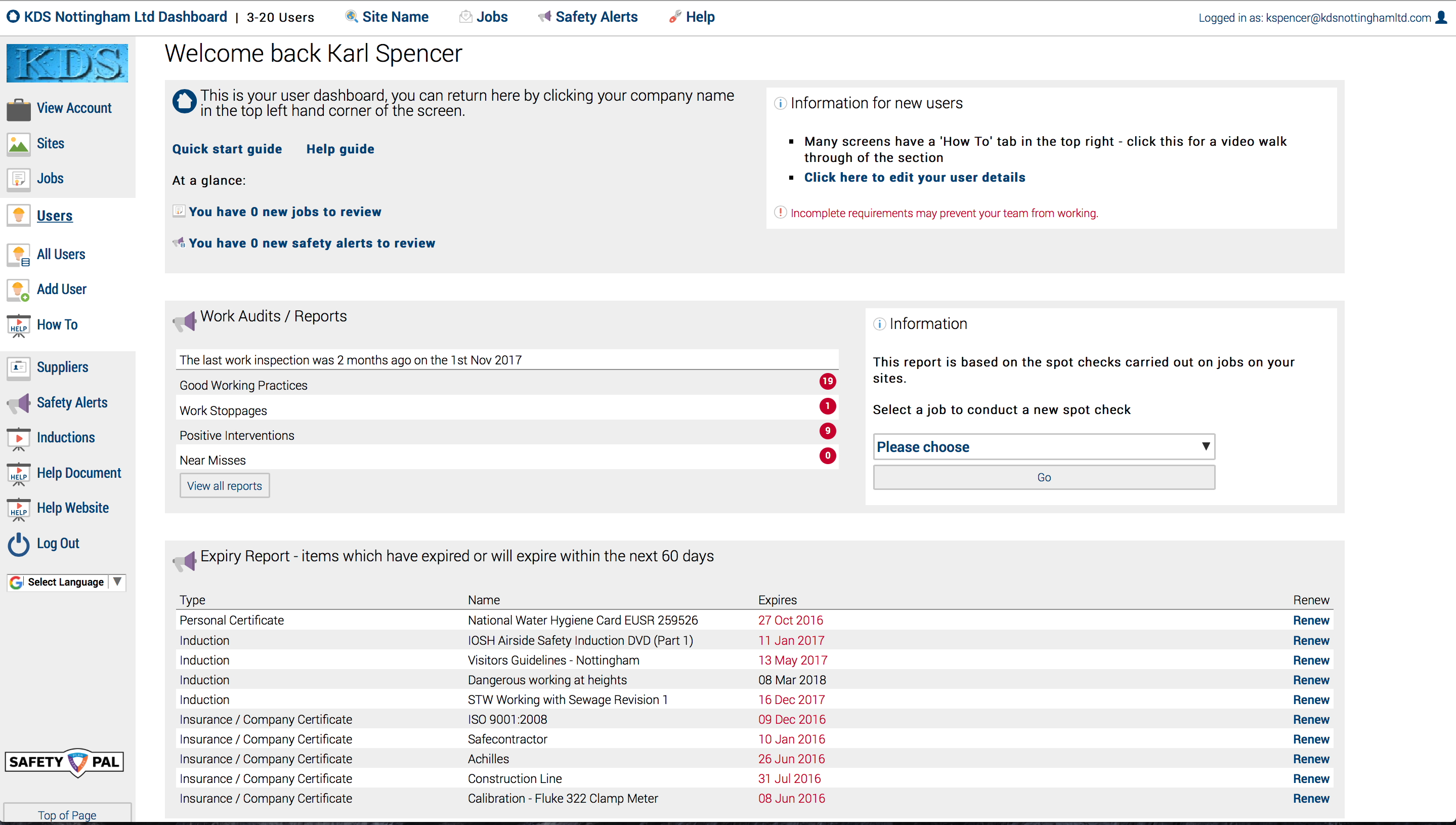
The main dashboard is your access to all areas.
The top section highlights any new job or new alerts you have needing review
To the right hand side, you can quickly access user editting of your profile.
Work Audit / Reports
More information on this section click here
Expiry reports
This part of your dashboard details all items which have expired or will expire within the next 60 days.
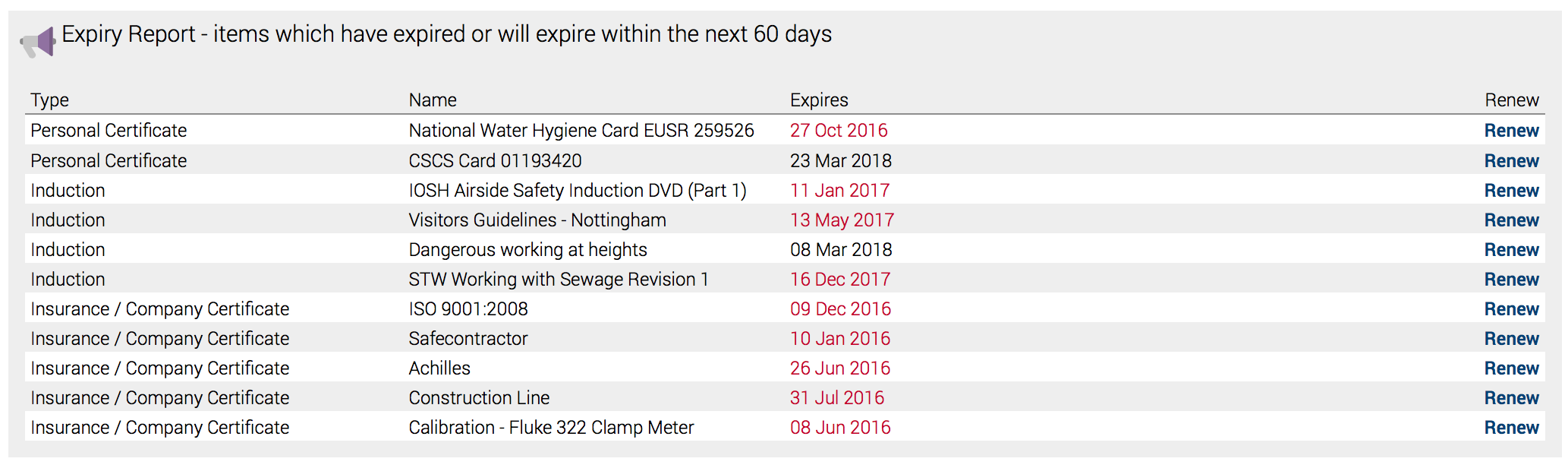
More expiration reports are avaialbe by hovering over View Account, then click expiry report.

The above image show the 4 buttons you have to build your specific report
‘Expired’ – ’30 days’ – ’60 days’ (as the dashboard shows) – ’90 days’
Click the report you require and Safety builds instantly and details the report below your selection.