Inductions & E-Learning
Engage better with your staff, and create powerful videos to allow an easier understanding of site rules and regulations. Add questions and answers to really make your videos compelling.
This section shows you how to add safety videos, inductions, and E-learning material.
You will find inductions on the left menu bar. Simple access buttons will allow you to:
Add a new induction: Adding E-Learning, safety videos and inductions allow you to create better engaging content. Adding questions and answers increases the workers and understanding of the risk, the awareness required and improves memory of training.
View Archived: Use this to view archive and archive and up-revved videos, older versions, and media no longer in operation.

Clicking the inductions page will show you the main media section.
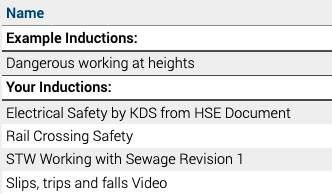
On the left, you have an example ‘Dangerous working at heights’ video to use for all your employees and or contractors. Using media files really engages with your workforce; replace standard lengthy paper-based documents with short engaging content.
You can upload as many media files as you require. You shouldn’t limit safety, so we don’t limit your content. When the user has taken the safety test, view the results under their individual profile. Next step.
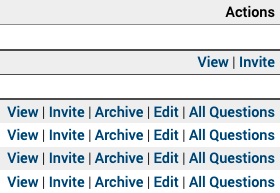
Over on the right section, you can:
Invite: Use this facility to invite individual users or all users in your organisation.
View: To enter the viewing mode, once the video finishes playing, the answer question button will appear.
Edit: Add and amend questions and answers.
Set Live: Use this facility to allow various supervisors or managers to build Q&A content, once the content is great, click set live, and now all users can take the test.
All Questions: Click to simply see all your Q&A for that specific media file.
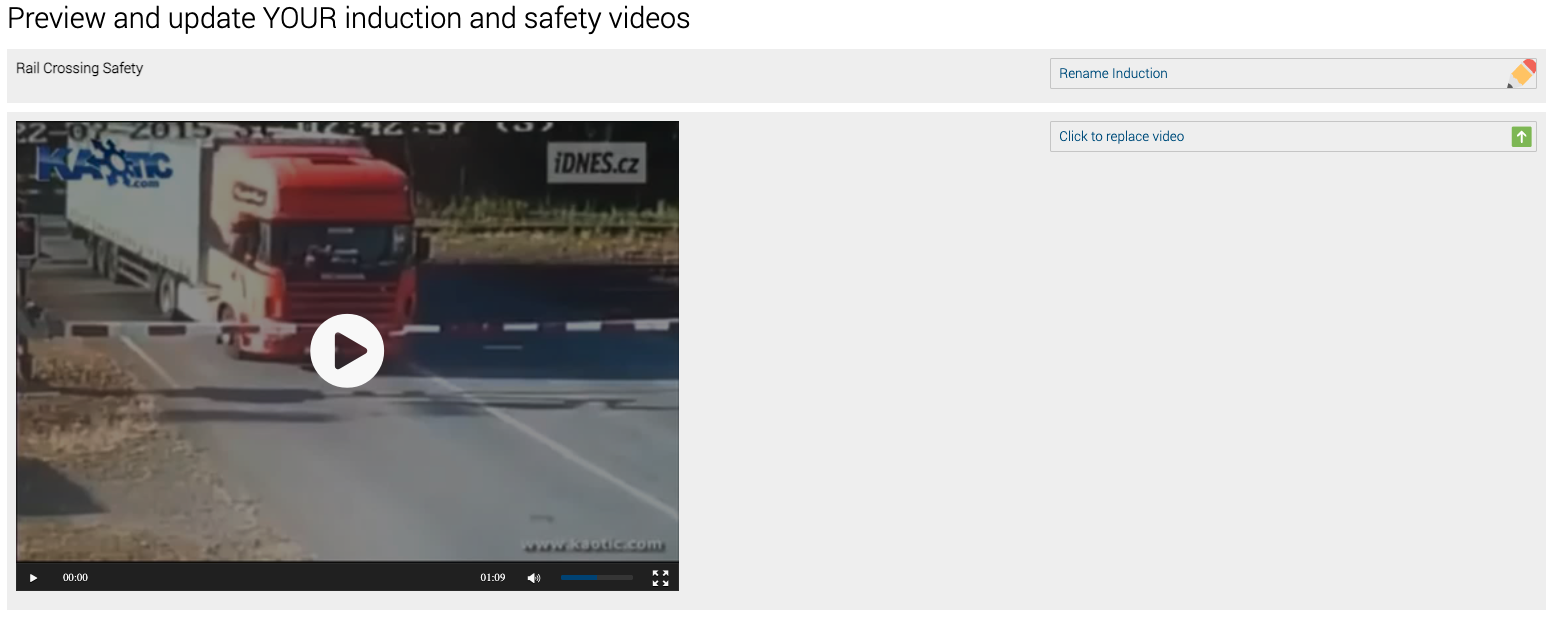
When creating an induction you are required to enter a title name and upload a video. You will then be able to add individual questions, each question has 3 multiple-choice questions, remember to tick the correct answer. You can always edit this later.
You must add a minimum of 3 questions in order to ensure your workers fully understand the test.
Tip: Always add a random question, this ensures your audience is really watching and listening.
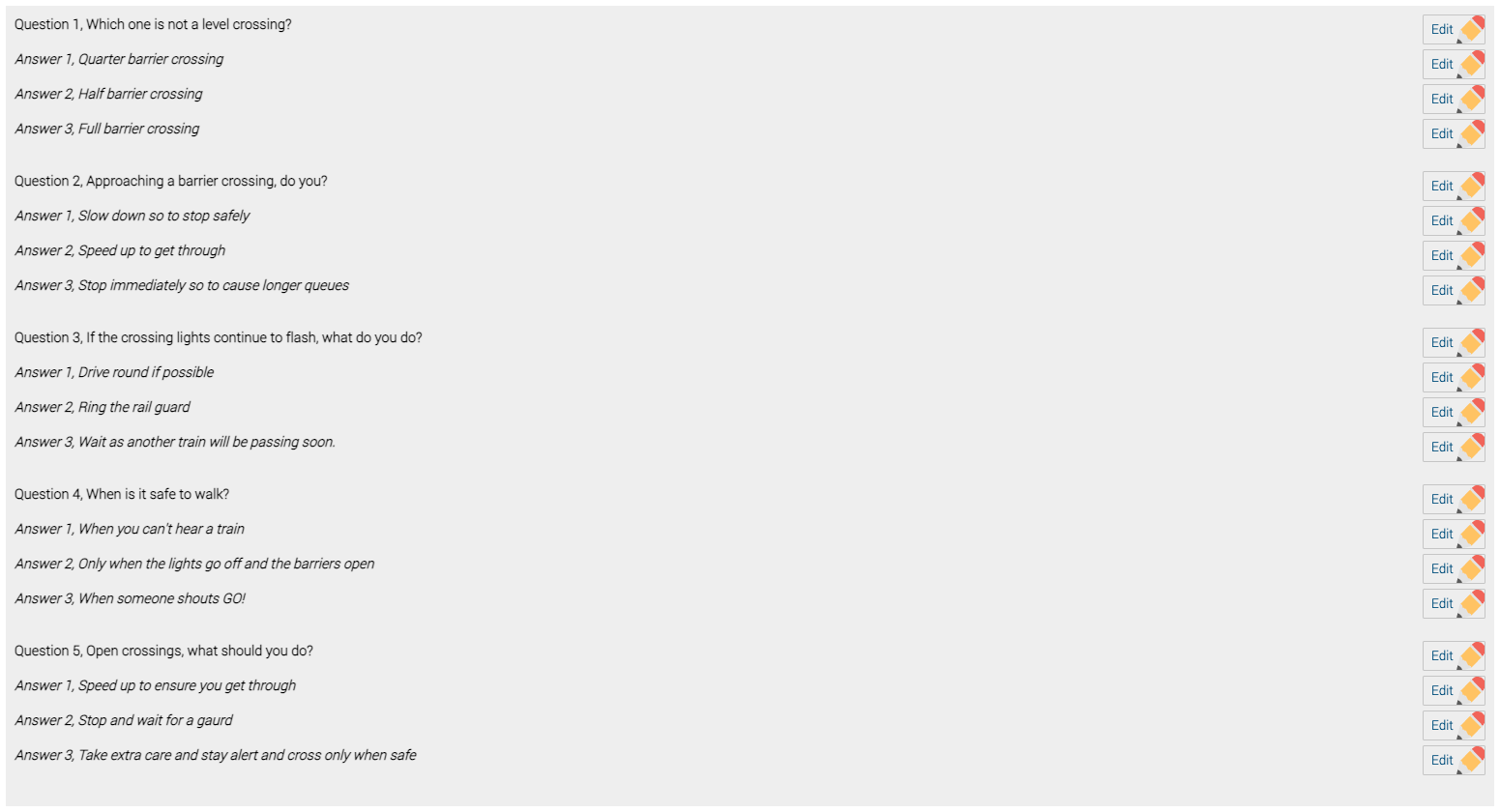
When you have added all your questions and answers in you will need to fill out this section.
Choose; the number of questions you want (minimum3), the number of attempts you want your workers to have, what % they must achieve in order to pass, and the expiry date of the induction before the workers must re-do it.
Safety PAL will automatically email the workers 60 days before the expiry time. Safety PAL will also inhibit users from signing into jobs if the safety videos are incomplete or out of date.

The user’s answers to the safety test can be viewed under their portal.
Name: Details the name of the safety video.
Attempted On: This shows the date when the user attempted or completed the induction.
Note: This date is a cloud-based time and can not be altered by the user if they alter the time on their phone, tablet, or PC.
Results, expiry date, and option to view their attempt are shown further over to the right side.
Result: Will be shown as either pass or fail. Passes or failures are based on the setting under each media file end section.
View Attempt: Click to see the user performance.

Tip: It will be seen that their initial test will be a fail if you have set questions around the HSE guidance, this can be based on the user’s initial thoguhts “oh another easy safety test’, the second attempt is also very common to be a failure, as again the users think “I know them now”, but as Safety PAL randomises the questions, the users are stumped. On the third attempt, you may notice, the user is taking a little more time as they really now understand the importance of the test.
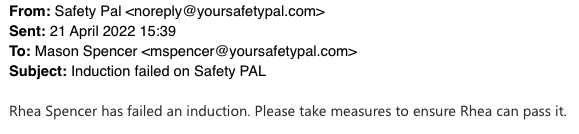
If the user fails all 2 attempts, then this user will be locked out and requires a manager to review before unlocking. Their manager will be notified of the multiple failures via email and then with the employee present, the manager must review the answers and discuss them further with the employee.
Once the manager is okay with the review, they can unlock the user to complete a further attempt.

Click here for more help files on Safety media